Print Templates related to the Search Result |
  
|
Print Templates related to the Search Result |
|
By using the Print templates with attribute data element, it is possible to relate one or more configured Print templates with a specific Search result. This is especially useful for Print templates which contain an Attribute table or one or more Attribute fields which are Layer specific (The Layer specific Attribute table respectively the Attribute field in the Print layout only get populated if the Layer of the current selection matches).
There exist three options to print from a search result:
•You have selected more than one feature and the predefined conditions of the project configuration (print type, scale) are fine. Either open the context menu (click the right mouse button when mouse is over the result entry to be selected) and print selected features using <defined print template> or open the drop down menu of the print button in the search result page and print selected features using <defined print template>.
Note: The context menu functions for printing are designed to provide Print functionality with one mouse button click only – the Print tool form does not open and therefore it is not necessary to specify any parameters for the Print function like Print scale etc. at all (configured default values are taken instead).
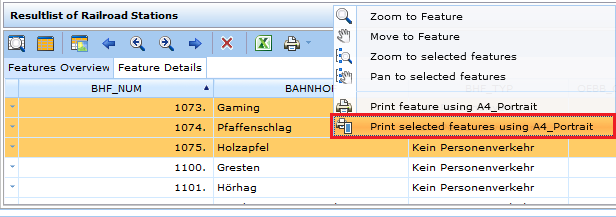
Print currently selected objects with a specific print template via context menu
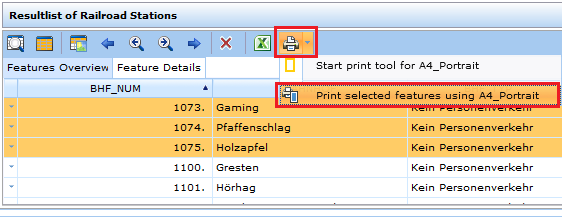
Print currently selected objects with a specific print template via drop down menu
•You want to print one specific selected feature and the predefined conditions of the project configuration (print type, scale) are fine. Having the desired object selected you can follow the instructions above or just simply click with the right mouse button on the object to be printed and choose "Print feature using <defined print template>".
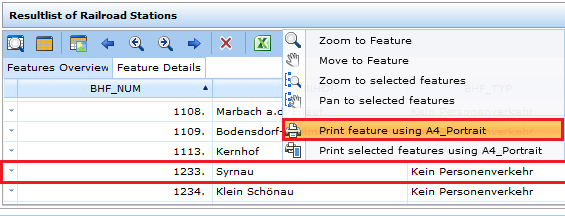
Print a single object with a specific print template via context menu
•However, if the predefined conditions do not meet your requirements you can open the print form by opening the drop down menu in the search result page and choosing "Start print tool for <defined print template>". In this way other print types, scales, etc. can be defined before printing.
Note: Only by opening the print form via the search result print button the specific print templates which are configured to be available from search result only can be selected in the print form. Otherwise these print templates will not be shown in the print form. The configuration of this parameter of a print template is described in chapter Print Format.
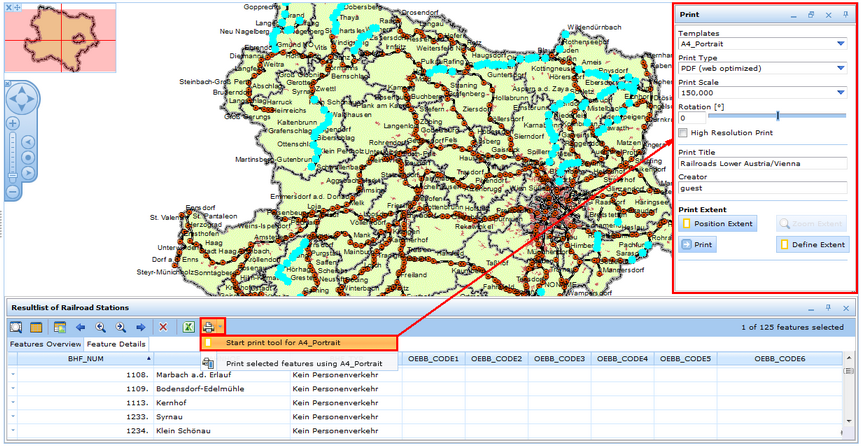
Start print tool for <defined print template> in WebOffice html client
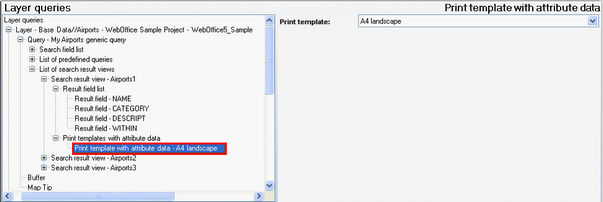
Print templates with attributive data configuration
Property |
Description |
Print template |
Print template with attribute data. |
Print template with attribute data configuration
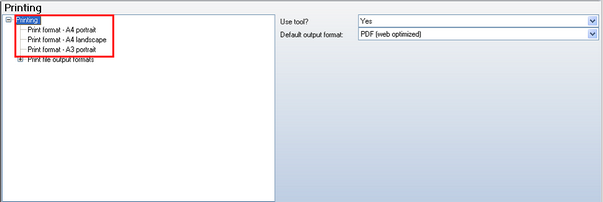
Printing - List of Print formats configuration