Integration of external Applications |
  
|
Integration of external Applications |
|
It is possible to integrate one or multiple web applications with WebOffice 10 R3. WebOffice 10 R3 is able to pass object keys to the configured web application and vice versa able to process object keys passed from an external application. See chapter Integration of external Web Applications for details.
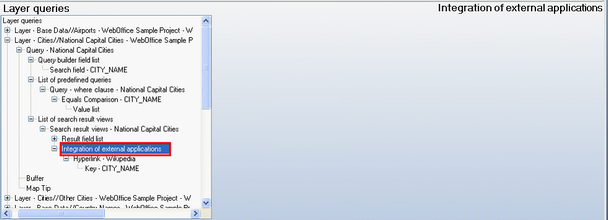
Integration of external web applications
There are two different types of integrations with external applications.
Tip: Use Hyperlink for providing easy access to image files (e.g. JPG or GIF files) or folders as well as to documents (e.g. PDF documents).
Tip: Use Integration (call from WebOffice) for passing parameters (objects keys etc.) to other web applications using HTTP GET query string or HTTP POST. This way user can easily switch/jump from WebOffice 10 R3 client to another web application passing over a specific selected object or a list of objects.
For both configuration elements it is possible to specify whether the external web application should be opened in:
•A WebOffice 10 R3 client window (Display mode IFrame). External web pages then get embedded in the WebOffice 10 R3 Client window. It does not matter whether a Pop Up Blocker is active or not. Alternatively it is possible to use
•A browser Pop-up window (Display mode pop up). Pop-ups must then be allowed for the WebOffice 10 R3 Client web page in order to correctly display contents of the integrated web page. You may use this option if e.g. the layout of the integrated web page does not fit to WebOffice 10 R3 client. Pop-up windows will open through a link, therefore the option "Resolve hyperlink automatically" option must be set to 'Not"
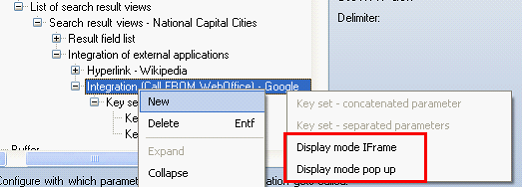
Display mode IFrame or pop up configuration elements
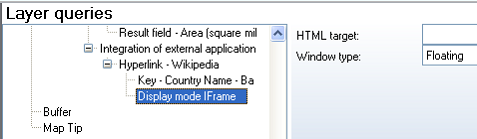
Display mode IFrame configuration
Property |
Description |
HTML target |
Specifies the HTML target to be used. This is useful for accelerating calls (especially repeated calls) to other applications and for controlling in which window a specific web application gets (re)opened. |
Window type |
The Window type attribute enables you to control the way the external web page is displayed. You may choose either •Floating or •Top Left (docked to the top left stack of the WebOffice Client window), •Bottom Left (docked to the bottom left stack of the WebOffice Client window), •Top Right (docked to the top right stack of the WebOffice Client window), •Bottom right (docked to the bottom right stack of the WebOffice Client window), •Hidden (the content of the integrated web page will not bee displayed at all in the WebOffice client). Use this option for SynerGIS URL Integrator calls. |
Display mode IFrame configuration
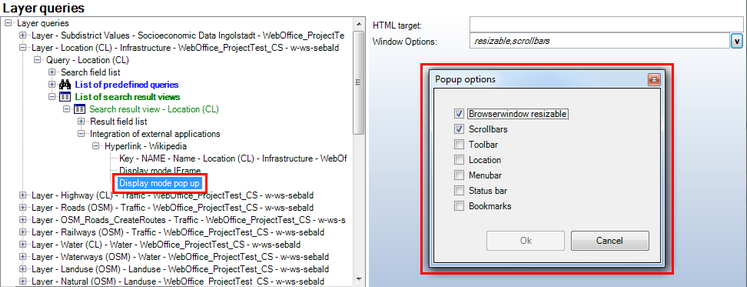
Display mode pop up configuration
Property |
Description |
HTML target |
Specifies the HTML target to be used. This is useful for accelerating calls to other applications and for controlling in which window a specific web application gets (re)opened. With this attribute, it is possible to alternately display various coupled applications in a single browser window or display each coupled application, that a number of various application windows are displayed at the same time. Note: If no value is specified, the given name in the configuration of the coupled application is used as identifier. |
Window Options |
Defines the options (GUI elements) for the popup window. Press the arrow symbol on the right hand side of the input field to get a list of options to choose from. |
Display mode pop up configuration
•Integration of external application - Hyperlink
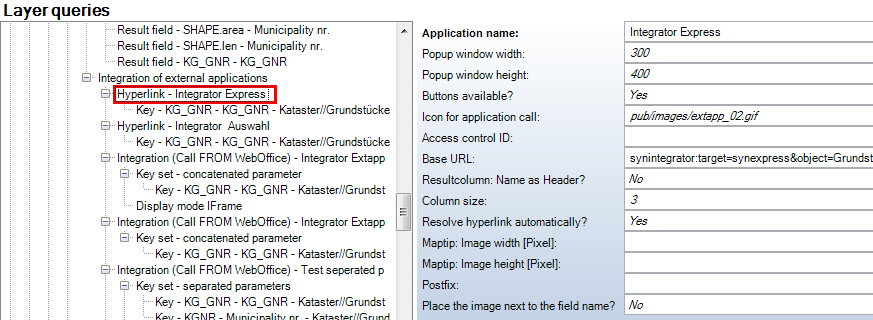
Hyperlink configuration
Property |
Description |
Application name |
Name of external web application used for display in WebOffice client (Search result). |
Popup window width |
If using popup windows for displaying external contents the size of the popup window can be configured. |
Popup window height |
If using popup windows for displaying external contents the size of the popup window can be configured. |
Buttons available? |
Provide button (Yes) or hyperlink (No) in WebOffice client. 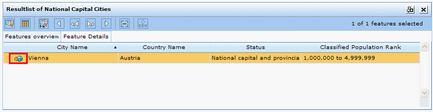 Buttons available? Yes - WebOffice 10 R3 client
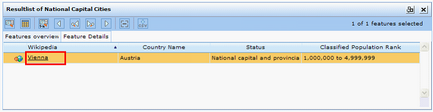 Buttons available? No - WebOffice 10 R3 client
|
Icon for application call |
In WebOffice 10 R3 folder pub/images 10 icons are available (extapp_01.gif, extapp_02.gif to extapp_10.gif). Icon size 16x16 pixels. |
Base URL |
Full Base URL if only the file name of an image or a relative hyperlink is available in the data field. Note: You may use a UNC path as Base URL as well if the client browser is Internet Explorer (Mozilla Firefox does NOT support opening documents in the browser using UNC paths), e.g. \\myFileServer\myWebOfficeFileShare |
Resultcolumn: Name as header |
If "Yes" the configured application name is used as the column header in the result display, not only as tooltip. |
Column size |
Column size in result page [Units in characters]. Definition is needed if 'Resultcolumn: Name as header' is defined and has to refer to the length of 'Application name'. |
Resolve hyperlink automatically? |
If "Yes" then the hyperlink gets resolved automatically whenever possible for e.g. showing images in the WebOffice client (possible for Tool MapTip only). If "No" then hyperlinks get displayed. The user must then click the hyperlink to get the image respectively multimedia content displayed. |
MapTip: Image width [Pixel] |
If the search result is also used in a MapTip and a hyperlink is configured to an image, the image size can be defined. Note: The definition of a fixed width and height can lead to an image distortion. If only one is defined, then image is to be made smaller or bigger by preserving the proportion. |
MapTip: Image height [Pixel] |
If the search result is also used in a MapTip and a hyperlink is configured to an image, the image size can be defined. Note: The definition of a fixed width and height can lead to an image distortion. If only one is defined, then image is to be made smaller or bigger by preserving the proportion. |
Postfix |
Optionally add a string to the dynamically generated URL. E.G. '.jpg' or '/sizes/o' Note: The Postfix only gets added if the used URL does not have a query string. |
Place the image next to the field name? |
Images (when hyperlinking the images) could be placed next to the fieldnames: -'Yes': Place them next to the field names -'No': Place them to the top of the panel (MapTip, search info in the FLEX client) |
Hyperlink configuration
A Key element needs to be configured for Hyperlink in order to be able to dynamically add the value of the field configured in Key to the resulting URL used if the user clicks the button / hyperlink.
•E.g. if Base URL is http://en.wikipedia.org/wiki/ and the value of field CITY_NAME of the currently selected object is Vienna, then the resulting URL is: http://en.wikipedia.org/wiki/Vienna
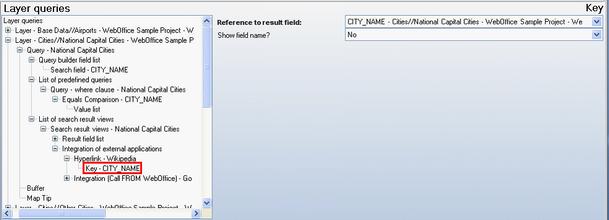
Key configuration
Property |
Description |
Field |
Reference to Search result field. |
Show field name? |
Show field name (Yes) or field value (No) in WebOffice client as hyperlink. |
Key configuration
•It is also possible to have the complete URL provided by the data field, e.g. a field named "Image", containing the URL of the used image. In this case the parameters Base URL and Postfix can be left empty since all the information is provided by the field value. This option allows various types of image and path types as shown in the screenshot below.
Note: Currently only WebOffice flex client can automatically resolve image URLs from an "image_gallery" (like the first link in the screenshot below). WebOffice html and WebOffice mobile client will display a clickable hyperlink.
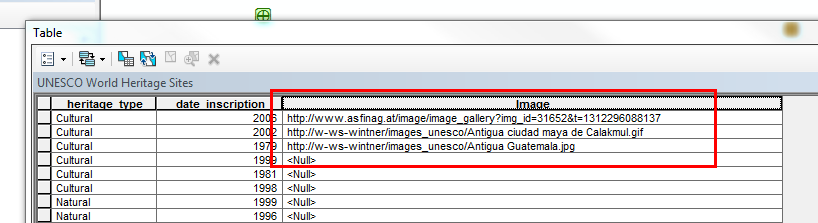
Field containing various base URLs
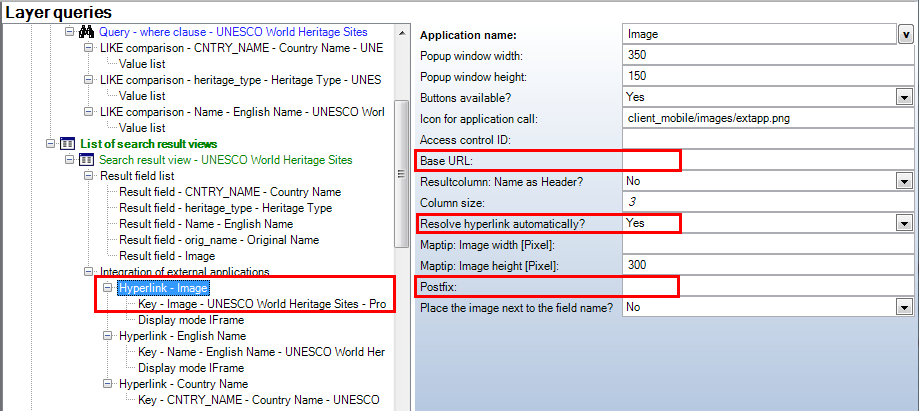
WebOffice configuration - Hyperlink
Another option is to read an image file from a directory. In order to do this a Base URL of the directory path must be specified and the parameter 'Resolve hyperlink automatically?' must be set to 'Yes'. It is important that the name of the data field of the key field is similar to the name of the image file. In this example the image file name for the country 'Austria' is then called 'Austria.gif', for 'Switzerland' then 'Switzerland.gif' etc. The file extension must be entered in the field 'postfix'.
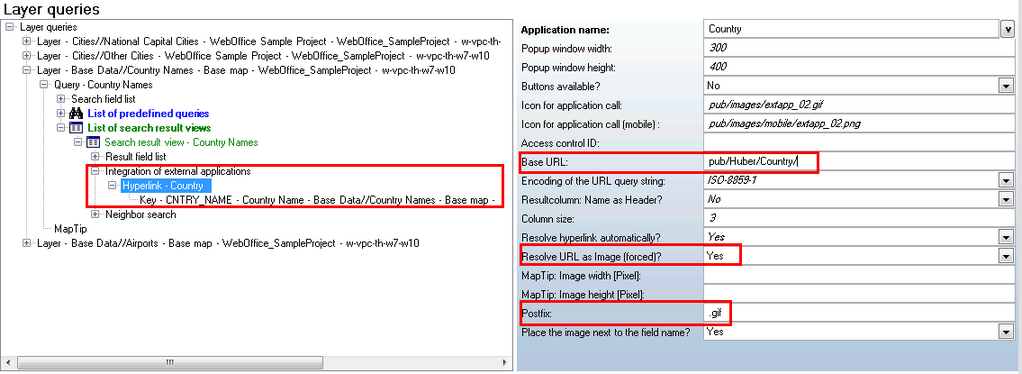
WebOffice configuration - Hyperlink with imagefile
If MapTip is configured then the image file will appear for the corresponding result field. More details how to configure MapTip see chapter MapTip.
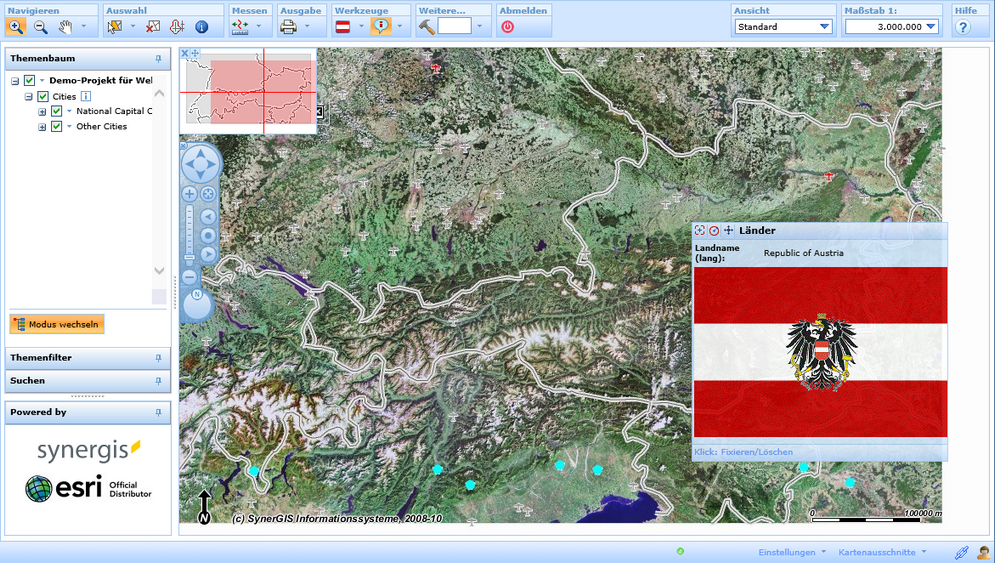
Hyperlink with image file in MapTip
•Integration of external application - Integration (call FROM WebOffice)
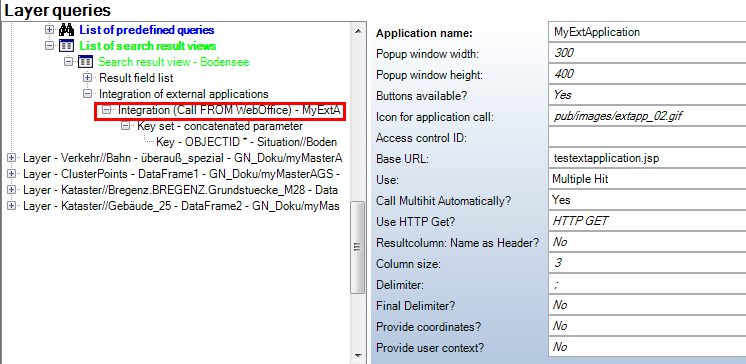
Integration (call FROM WebOffice) configuration
Property |
Description |
Application name |
Name of external web application used for display in WebOffice client (Search result). |
Popup window width |
If using popup windows for displaying external contents the size of the popup window can be configured. |
Popup window height |
If using popup windows for displaying external contents the size of the popup window can be configured. |
Buttons available? |
Provide button (Yes) or hyperlink (No) in WebOffice client. Buttons available? Yes - WebOffice 10 R3 client
Buttons available? No - WebOffice 10 R3 client
|
Icon for application call |
In WebOffice folder pub/images 10 icons are available (extapp_01.gif, extapp_02.gif to extapp_10.gif). Icon size 16x16 pixels. |
Access control ID |
Access control ID needed for access control based on usermanagment module. If an ID is configured here (eg 'LINK_ALKIS_COLORMAP') and WebOffice usermanagement module is used then the user role is checked whether it provides the necessary application right or not (according to the example the application right would be LINK_ALKIS_COLORMAP). If the necessary application right is not available then the button/link for accessing the external application will not be available in the WebOffice search result page. Note: More details to usermanagement based restrictions can be found in Create a Restriction on an External Application |
Base URL |
Full Base URL if only the file name of an image or a relative hyperlink is available in the data field. |
Use |
Specify whether to pass single objects (Single Hit) or multiple objects (Multiple Hit) or both (Single and Multiple Hit). Note: If 'Multiple Hit' or 'Single and Multiple Hit' is configured and an 'Icon for application call' is specified, this Icon will be shown instead of the default icon (flash). Prerequisite is, that this is the only multi hit supporting external application configured for this search result. Additional option (External) permits to replace the WebOffice search result window by a search result window of the external application. Note: If you use option 'External' you can neither use multiple search result views nor call multiple external applications. |
Call Multihit automatically? |
If 'Yes' the configured multihit application call (option 'Use' is set to 'Multiple Hit') is executed automatically with every new result. |
Use HTTP Get? |
Pass parameters to external application via HTTP Get (Yes) or HTTP Post (No). |
Resultcolumn: Name as header |
If 'Yes' the configured application name is used as the column header in the result display, not only as tooltip. |
Column size |
Column size in result page [Units in characters]. Definition is needed if 'Resultcolumn: Name as header' is defined and has to refer to the length of 'Application name'. |
Delimiter |
Delimiter used for concatenating multiple values. Note that '|' is not supported. |
Final Delimiter |
Set to true, if key list should end with delimter character. Set to false, if at end of key list no delimiter should be used. E.g.: •Yes: 123;456;789; •No: 123;456;789 |
Provide coordinates? |
Specifies whether to additionally pass (Yes) or not pass (No) coordinates - If Identify/Info tool was used and no objects have been found then the click point gets passed - If as result with one or multiple objects has been found then for each object the label point is passed |
Provide user context? |
Used for UserManagement secured projects. Specifies if the user context of the user logged on to WebOffice will get passed in the HTTP header. The external application gets the following information: x-syn-login = <username> x-syn-application-roles = <list of application roles> x-syn-group = <group name>
Note: If providing a user context to an external application the URL will be redirected (URL changes from http://extserver/extpage.htm?...to http://webofficeserver/webofficeapplication/synredirect?...) Therefore all paths used in the external Application have to be full qualified! |
Integration (call FROM WebOffice) configuration
For integrating an external application, it is possible to use sets of keys passed from WebOffice 10 R3 to the external application.
•Key set
Key sets can be used for
•Concatenating values from various key fields and passing them over as one single parameter or
•Separating values from various fields and passing each of the field values a one specific parameter.
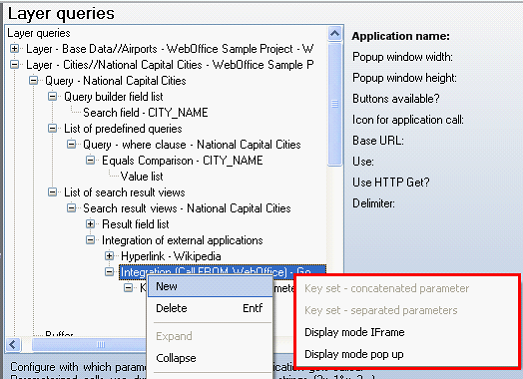
Key set concatenated / separated elements
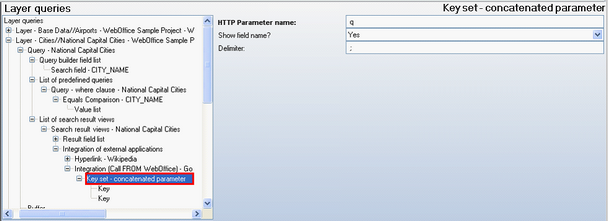
Key set concatenated configuration
Property |
Description |
HTTP Parameter name |
HTTP parameter name to be used for parameterized calls to external applications. Do not provide a parameter name at all if you want to provide access to multimedia content (e.g. documents, images etc.). |
Show field name? |
Show field name (Yes) or field value (No) in WebOffice client as hyperlink. |
Delimiter |
Delimiter used for concatenating multiple values. Note that '|' is not supported. |
Key set concatenated configuration
•Key
Concerning the Keys, it is possible to choose from the fields configured in the Search result.
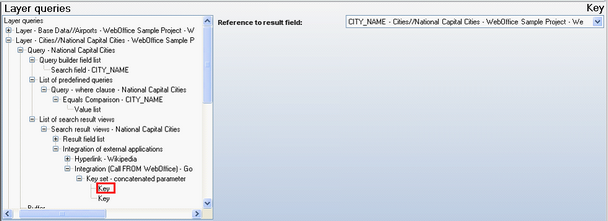
Key configuration
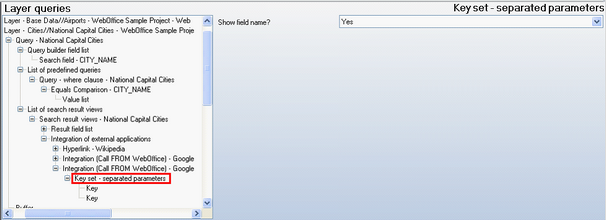
Keyset separated configuration
Property |
Description |
Show field name? |
Show field name (Yes) or field value (No) in WebOffice client as hyperlink. |
Keyset separated configuration
Concerning the Key elements, two properties can be specified.
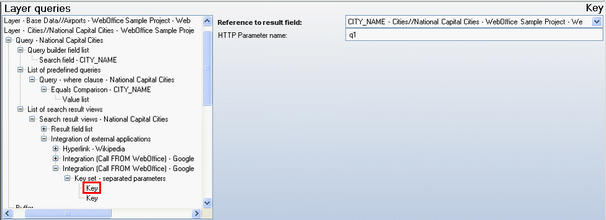
Key configuration
Property |
Description |
Field |
Show field name (Yes) or field value (No) in WebOffice client as hyperlink. |
HTTP Parameter name |
HTTP parameter name to be used for parameterized calls to external applications. If no parameter name is provided, then the field name of the configured field is used. |
Key configuration