Search for Route Segments |
  
|
Search for Route Segments |
|
With WebOffice 10 R3 an elementary functionality of linear referencing is given. It is possible to uniquely identify positions along lines without explicit x,y coordinates, but instead, the location is given in terms of a known line feature and measure along the feature.
As precondition, the data has to be a route created with the Esri Linear Referencing module.
After defining a predefined query on the layer, it is possible to enable the functionality. Navigate to Layer queries and set the option: Use route functionality? to Yes on Layer level of the layer to search on (See chapter Layer Queries for details).
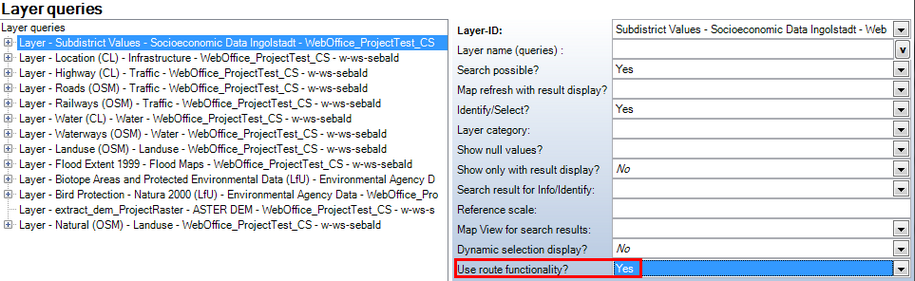
Enable route functionality - WebOffice category
The condition of the predefined query will be connected to a M-value search using the AND operator. The M-value search is a between search and consists of two text inputs: M-value from and M-value to.
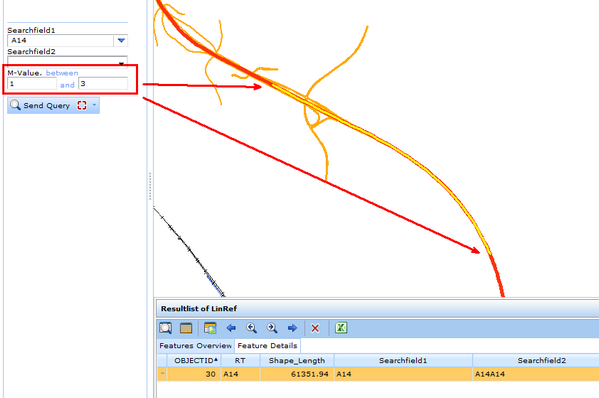
Search dialog and result in WebOffice 10 R3 client
The route functionality can also be used with an external call. It is possible to search for one or more than one route segments. A sample URL call can look like:
•Search for one route
../../externalcall.jsp?project=SampleProject&query=road_routing&keyname=road_code&keyvalue=A23&m_from=13.5&m_to=18
=> Search for "Road Routing" (query has External Layer-ID: road_routing) where "Road Code" (field name = road_code) = "A23" between kilometer/mile "13.5" and "18"
•Search for more than one route
../../externalcall.jsp?project=SampleProject&query=road_routing&keyname=road_code&keyvalue=A23;A22&m_from=13.5;2&m_to=18;8.5
=> Search for "Road Routing" (query has External Layer-ID: road_routing) where "Road Code" (field name = road_code) = "A23" between kilometer/mile "13.5" and "18" and where "Road Code" = "A22" between kilometer/mile "2" and "8.5"
•Search for a discrete point
../../externalcall.jsp?project=SampleProject&query=road_routing&keyname=road_code&keyvalue=A23&m_from=13.5
=> Search for "Road Routing" (query has External Layer-ID: road_routing) where "Road Code" (field name = road_code) = "A23" is kilometer/mile "13.5"
Note: More details for WebOffice URL calls can be found in chapter WebOffice URL call Interface.
The Route-functionality shows the following results by querying the data:
•Selection
•Identify
•MapTip
Selection
Further details on how to configure the selection can be found at Select - Boxselection, Select by Polyline, Select by Area, Select by Circle.
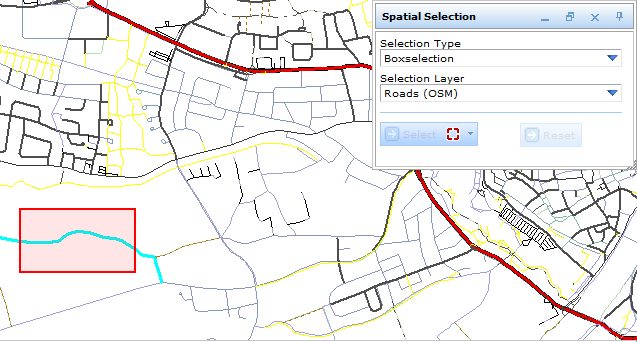
Selection on route-data
A selection of route data will select the particular segment, which reveals the results showing the mileage/kilometers ('(mi/mi)' / 'to (mi/km)').
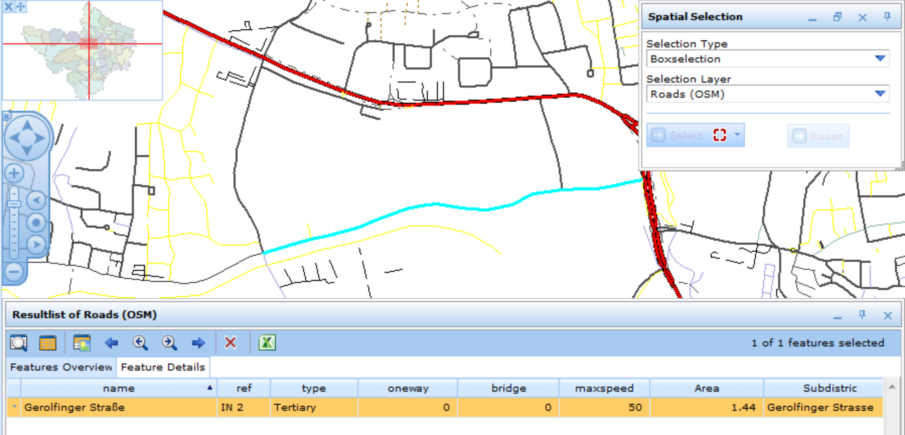
Displaying result by selecting route data
Identify
For more details on how to configure the Identify options, please refer to Identify. When running the Identify tool, the result(s) will be displayed in the result table, including the specific "Straßenkilometer" (i.e. kilometer - of road/street) in the field "from (mi/km)" and "to (mi/km). The display of the particular length measurement can also be defined in the basic configuration application.
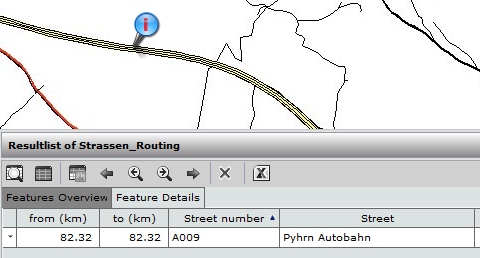
Identification result of route data
MapTip
For more details on how to configure the MapTip tool, see Identifying, and MapTip. If a road kilometers is identified, which adorns a MapTip, the entire route segment of a road or street, and other feature(s) is selected, and shown on the basis of the indicated in the 'M-value (km)'.
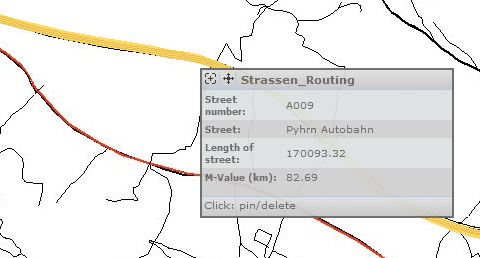
Identification result of route data with a MapTip