Load and Adjust Project Configuration |
  
|
Load and Adjust Project Configuration |
|
Open the mxd file WebOffice_SampleProject.mxd from <ArcGIS Server Location>\SampleProject\projects\mxd\ and load the project configuration WebOffice_SampleProject with WebOffice author:
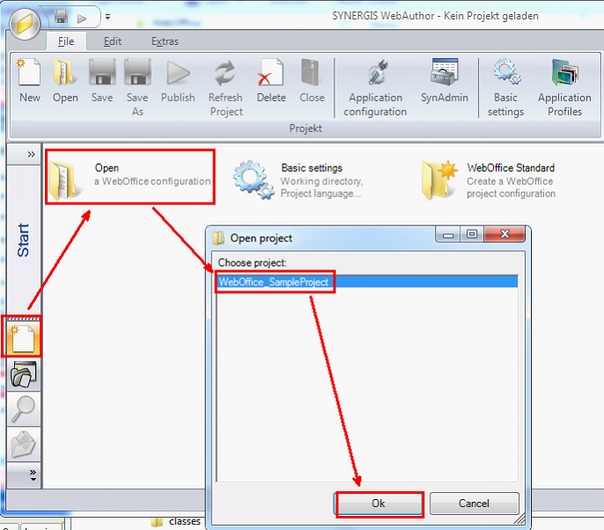
WebOffice author - Load project configuration
You must now set the correct ArcGIS Server Map Service connection properties. For this, you need to provide Server, User and Password (Provide user credentials of a valid Windows user that is member of the agsusers group at least (It may be member of the agsadmin group as well)).
Use the ArcGIS Server Connections function in Extras menu for quickly setting the correct connection properties.
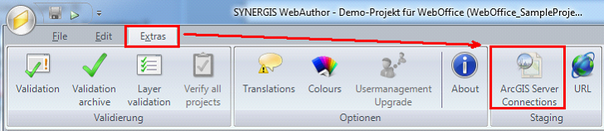
ArcGIS Server Connections in Extras menu
Check the listed entries and press the Edit button of the dialog.
A small window opens where you can provide the correct
•Server,
•User and
•Password and
•Password confirmation information.
Apply the changes.
Note: If a domain user is used for accessing the service, then the windows domain needs to be provided in the format 'domain\user'. If no domain is configured then authentication is done locally.
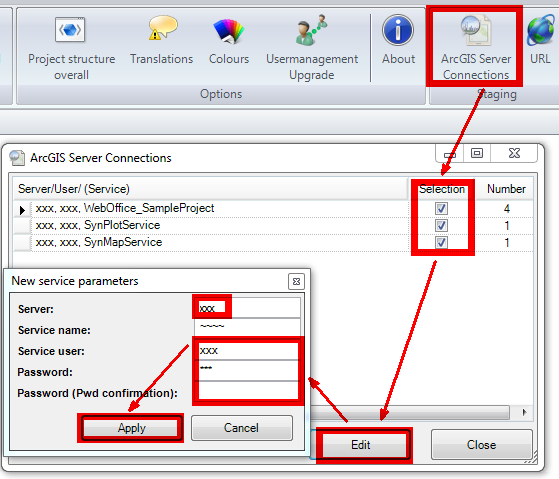
ArcGIS Server Connections - setting first entry
Finally save the changed WebOffice 10 R3 project configuration with WebOffice author.
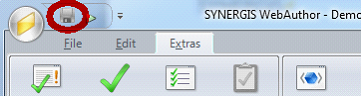
Save project configuration