Configure the full text search |
  
|
Configure the full text search |
|
In WebOffice 10 R3 it is possible to use an indexed full-text search. Therefore create a new directory called 'webapps_custom' in the Tomcat directory and another directory called 'FTS-Index' inside the 'webapps_custom' folder. Then copy-paste the FTS-Index.zip file from WebOffice10R3-DVD\Software\FTS-Index Web Application\unpackaged\ into the newly created FTS-Index folder and unzip it.
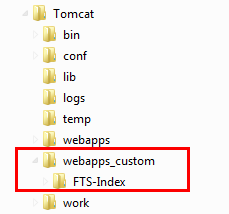
FTS-Index installation
The next step is to adapt the context descriptor file FTS-Index.xml from WebOffice10R3-DVD\Software\FTS-Index Web Application\unpackaged\. Copy-paste this file into <Tomcat install dir>\conf\Catalina\<Hostname>\ and adapt it concerning the parameters docBase, workDir and value.
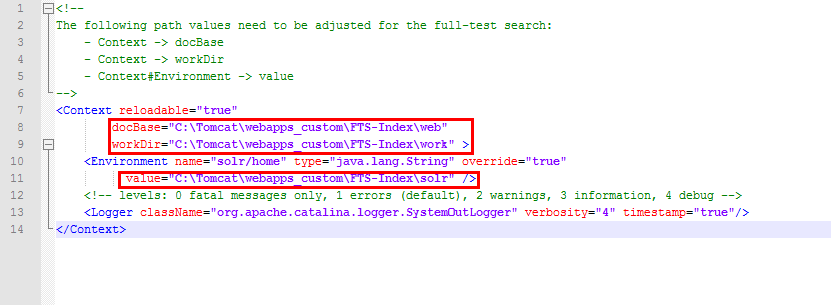
FTS-Index.xml configuration
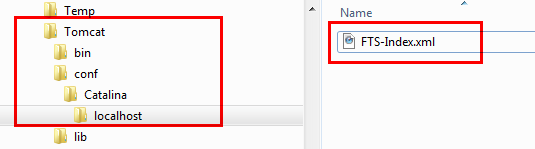
FTS-Index.xml in Tomcat directory
Now stop Apache Tomcat via the context menu of the task bar and restart the service again.
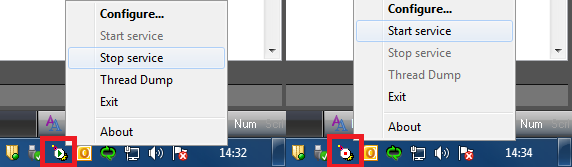
Restart of Apache Tomcat
To validate the correct installation of the search index application, enter the URL like: http://[servername]:[tomcat-port]/<search index application name>. The filename of the application context descriptor file (without file extension) defines the application name of the search index application, in this case "FTS-Index". If the Solr-Framework is correctly installed, the 'Welcome to Solr!'-page should appear.

'Welcome to Solr!'-page
Next step is to configure the search index address in WebOffice author. Open the application configuration and add full-text search on node common. Enter the correct URL to your search index application at 'Searchindex address'. The name of that application is also the name of the application context descriptor file (e. g. FTS-Index.xml) without file extension.
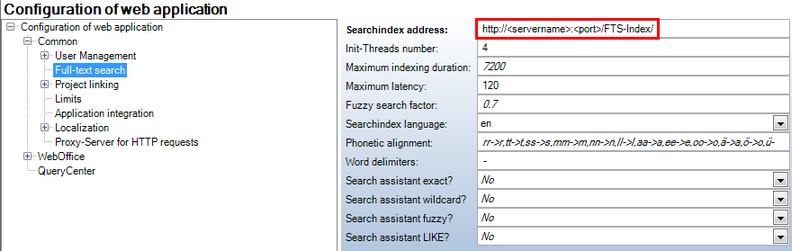
Configuration of the search index address
If the full text search is correctly configured, you will get a new tab in Synadmin called 'Full text search'. Before using the full text search in the WebOffice 10 R3 project you have to calculate the indizes, more details please find in chapter Full text search.