Analyzing Log Files

The following features are available in the Log Explorer in SynAdmin and in the Log Explorer Standalone alike.
Overview
At the top, the Log Explorer shows the number of displayed entries, their time span, the number per log level and the most frequent projects. Clicking a log level shows only that level, another click shows all levels again; clicking a project filters by that project.
Timeline
The timeline shows the entries as bars, divided into errors (red), warnings (orange) and other messages (gray). Application starts are marked with a green line, the selected entry with a blue line. The bar size (e.g. 1 min, 15 min) adapts to the displayed time range and is shown above the timeline.
•The mouse wheel zooms in or out around the mouse position (down to 50 ms), Shift + mouse wheel pans.
•Dragging across a range zooms to that time range.
•Clicking a bar shows details for that time slot: number per log level, categories, projects and the most frequent messages. From there you can zoom into the bar or show its first entry in the table. A double-click zooms into the bar directly.
•↶ Back restores the previous view, + and − zoom step by step.
•As long as a time range is selected, Time filter active ✕ clear is shown on the right above the timeline; it shows the whole time range again.
The zoom acts as time range filter: the table, the overview and the error groups always show exactly the visible range.
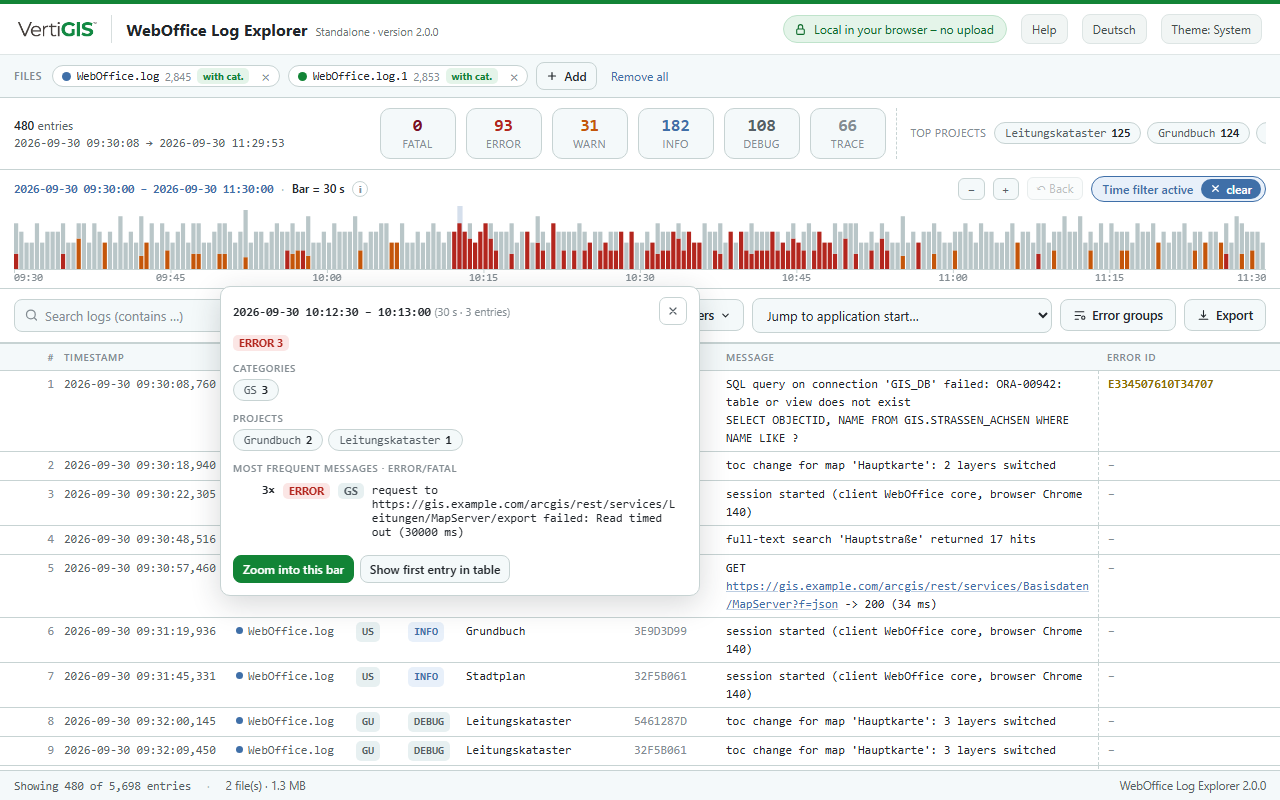
Details of a timeline slot
Search
The search field finds entries whose message, project, session, thread, error ID or category contains the text entered; upper and lower case do not matter. The .* button on the right of the search field interprets the input as a regular expression, e.g. timed out|refused for entries containing one term or the other. The help of the Log Explorer contains examples and the most important characters.
Advanced filters
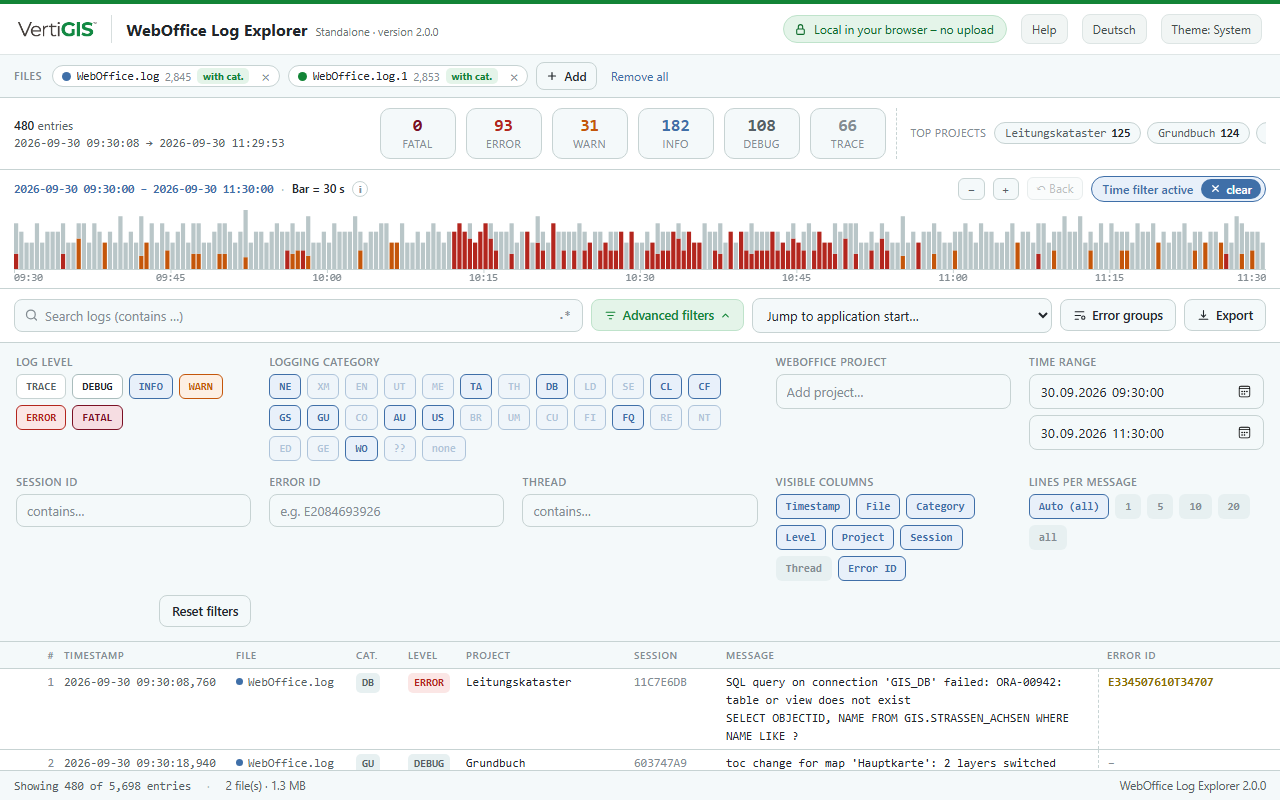
Advanced filters
•Log level – show and hide individual levels.
•Logging category – show and hide categories; Ctrl + click shows only that category. none stands for entries in the previous format without category. Categories that do not occur in the loaded data are dimmed.
•WebOffice project – select one or more projects.
•Time range – start and end of the time range (corresponds to the zoom of the timeline).
•Session ID, Error ID, Thread – entries whose value contains the text entered.
•Visible columns – show and hide columns; the width can be changed with the mouse in the table header.
•Lines per message – how many lines of a multi-line message are shown in the table: Auto (all lines for up to 5 files, otherwise 10), 1, 5, 10, 20 or all.
Reset filters removes all filters. Column selection, column widths, lines per message and appearance are saved per browser.
Table and detail view
Long messages are wrapped; for multi-line messages, +N more lines expands the whole message in the table. Double-clicking a session ID or error ID filters by it.
Clicking an entry opens the detail view on the right with all fields and the complete message including the stack trace. From there you can filter by thread, project, session or error ID, narrow down to the entries shortly before and after with ±1 min around this entry, copy the message or the whole entry and browse through the entries with the arrow keys.
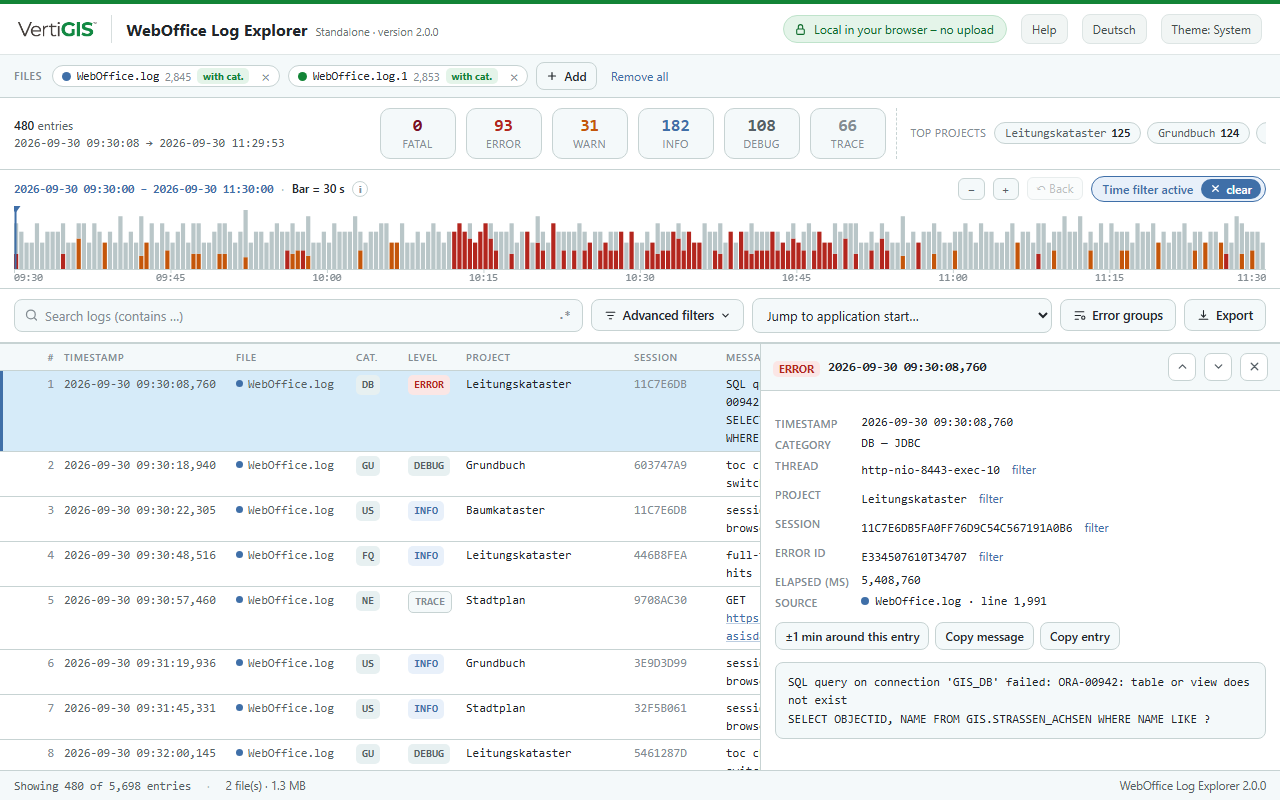
Detail view of an entry
Error groups
Error groups summarizes the ERROR and FATAL messages of the current selection by level, category and message text, with numbers, IDs and URLs masked. This immediately shows which errors occur how often, in how many sessions and in which time range. Optionally, warnings are included. Clicking a group filters the table to these errors.
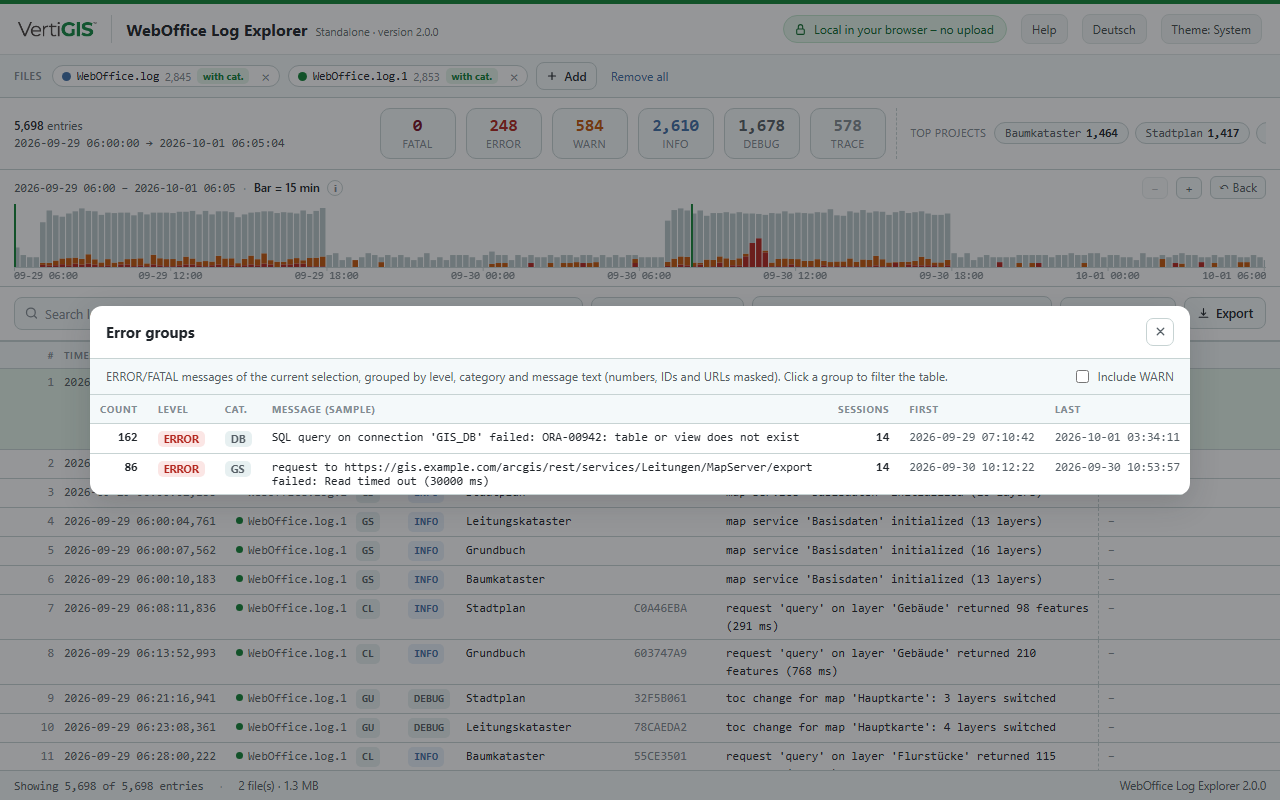
Error groups
Further features
•Jump to application start – lists all starts of the application with version and build and jumps to the selected start.
•Export – saves the filtered entries as a log file in the WebOffice log format; the file can be loaded into the Log Explorer again.
•Keyboard – / puts the cursor into the search field, ↑/↓ or k/j browse through the entries, Esc closes the detail view.
•Help – short instructions including examples for regular expressions.