Print Labels |
  
|
Print Labels |
|
In some cases, labels may not be displayed on the print. E.g. this will happen in WebOffice 10 R3 if a drawing is placed above a label using the Redlining Tool. To avoid this problem it is possible to allow "Place overlapping labels" in the Placement Properties of the layer. This option may be checked on the layer of the project MXD.
Configuration on the layer of the project MXD
•open the project MXD
•open the respective Layer Properties
•open Placement Properties in the Labels tab
•check option Place overlapping labels in the Conflict Detection tab
•save MXD, restart the map service and reload resources of the project
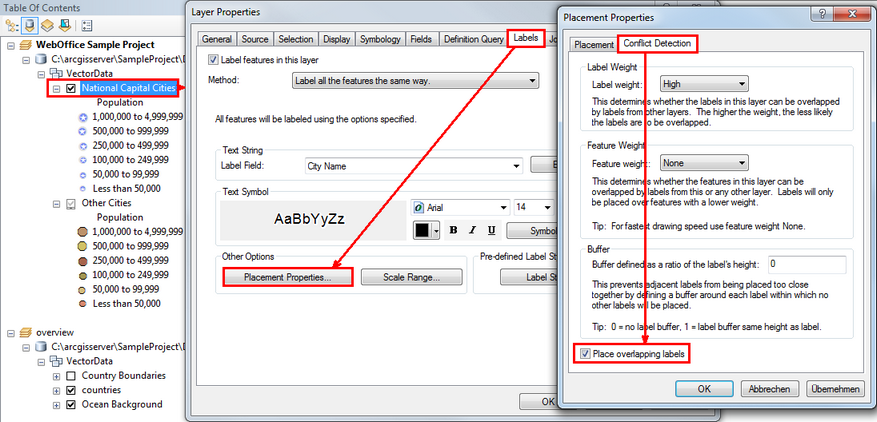
Configuration "Place overlapping labels" on the layer of the project MXD
Configuration on the layer of the SynPlotService MXD
In case the option in the project MXD was deactivated consciously, the configuration can also be set in the SynPlotService MXD.
•open the SynPlotService MXD
•drag the respective layer from the project MXD into the data frame print of the SynPlotService MXD
•open the respective Layer Properties
•open Placement Properties in the Labels tab
•check option Place overlapping labels in the Conflict Detection tab
•save MXD, restart the map service and reload resources of the project
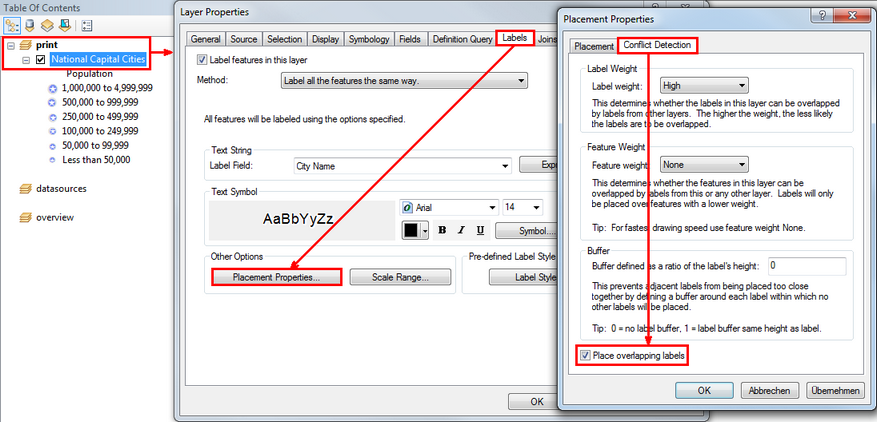
Configuration "Place overlapping labels" on the layer of the SynPlotService MXD
With this settings labels will also be displayed if they are covered by redlining drawings.
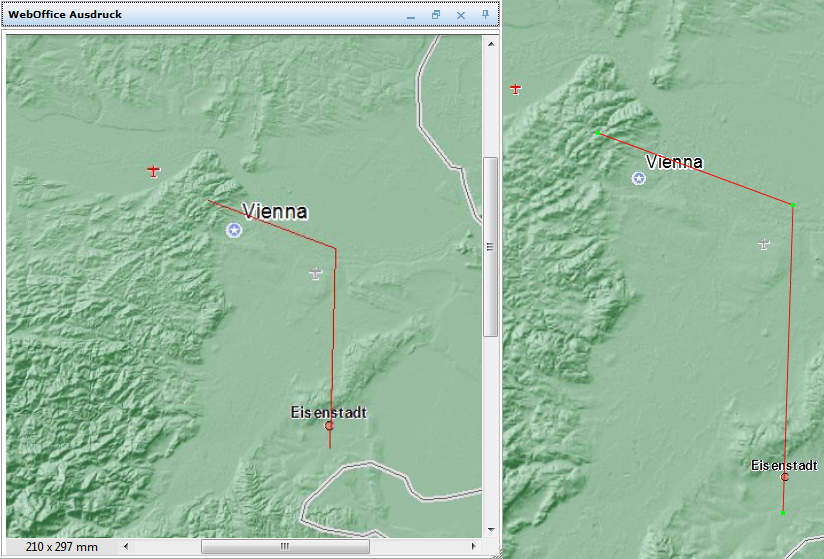
Labels and redlining drawing on the print