WebOffice ePaper (GIS Server) |
  
|
WebOffice ePaper (GIS Server) |
|
The WebOffice ePaper extension needs to be installed on the same server where ESRI ArcGIS Server is installed and running.
WebOffice ePaper setups on WebOffice10R3-DVD:
WebOffice10R3-DVD\Software\WebOffice extensions\English\WebOfficeExtensions.msi
(English setup)
WebOffice10R3-DVD\Software\WebOffice extensions\German\WebOfficeExtensions.msi
(German setup)
Note: If you have already executed the WebOfficeExtensions.msi with Complete or Typical setup routine, you do not need to install WebOffice ePaper again (setup will fail if the extension is already installed).
Note: If you experience troubles installing the setup you can log the installation steps using the msiexec -i installation functionality (msiexec -x for uninstall). Type msiexec in your command line window to get an overview of the logging options. E.g. install the setup with these options to get a log file with detailled information: msiexec –i <path to setup.msi> /l*v <path to create log file in>\install.log
IMPORTANT Note: Before starting the setup for registering the ArcGIS Server Object extension, all the ArcGIS for Server object configurations must be moved over to a backup location (e.g. back them up to C:\archive\cfg and delete all configuration files from <ArcGIS Server installation directory>\server\user\cfg). Stop and restart the ArcGIS Server Object Manager service then.
This has to be done before installing ANY WebOffice extension (WebOffice plot extension, WebOffice plot author, WebOffice ePaper, WebOffice ePaper author, WebOffice extract server and WebOffice extract server author) as well as ANY of the SynerGIS GeoOffice components (e.g. GeoOffice symbologies)!
If the SynerGIS GeoOffice components have changed, please restart the server machine after installation, so that ArcGIS for Server will remark the changed components.
Note that for proper display of the ArcCatalog property page for WebOffice ePaper extension, the software components documented in chapter GeoOffice ePaper must be installed on the machine where ArcCatalog is used.
You can check correct installation of the WebOffice ePaper server extension later on by checking the Map service capabilities – a ‘WebOffice ePaper’ capability must be available if you look on the Service properties of the stopped Server object.
Note: Please create a directory called 'WebOfficeePaperTemplates' in C:\arcgisserver\.
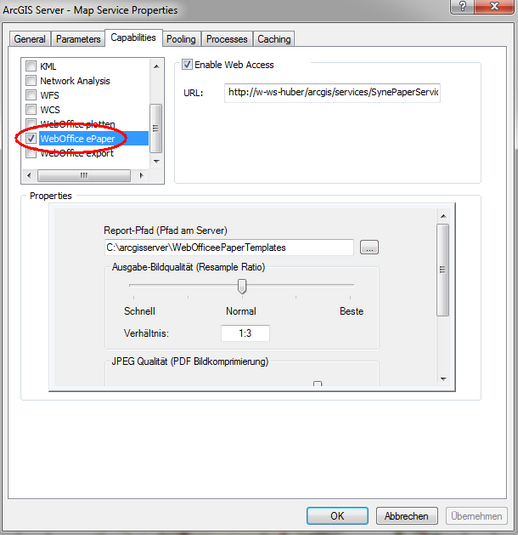
WebOffice ePaper capability
The ePaper templates get displayed inside the WebOffice ePaper manager according to following search order:
1. mxd directory.
2. Free definable directory.
3. ePaper configuration directory.
If an ePaper template can be found within the mxd directory, the search stops. Only the templates which can be found in the mxd directory are listed in the WebOffice ePaper manager.
If no templates exist in the mxd directory, the search proceeds in the free definable directory. The free definable directory can only be found if you configure the path in the StoreManagerConfiguration.xml. The StoreManagerConfiguration.xml can, by default, be found under the directory C:\Program Files\SYNERGIS\GeoOffice\Configuration. Type the free path under the destination name “Configuration”.
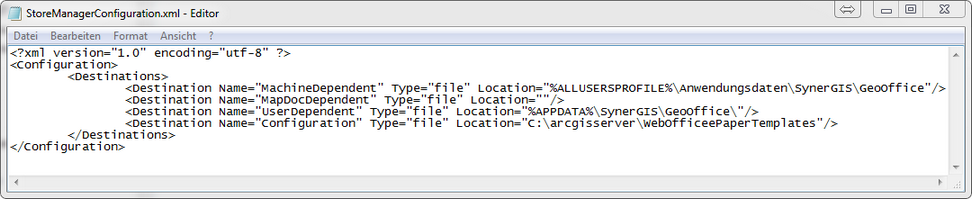
StoreManagerConfiguration.xml
If no templates exist in the free definable directory, or the path is not listed in the StoreManagerConfiguration.xml, the search proceeds in the ePaper configuration directory. By default, the directory is located under C:\Program\Files\SynerGIS\GeoOffice\ Configuration\ePaper.