Step 6 |
  
|
Step 6 |
|
In step 6 you must define optional map elements.
Check 'Overview map' if you want to have an overview map in your WebOffice 10 R3 client. The map selected in step 2 is used as Overview Map by default.
Note: If you want to use an Overview map but not the map service selected in step 2, then click the 'Edit' button and e.g. change the data frame property.
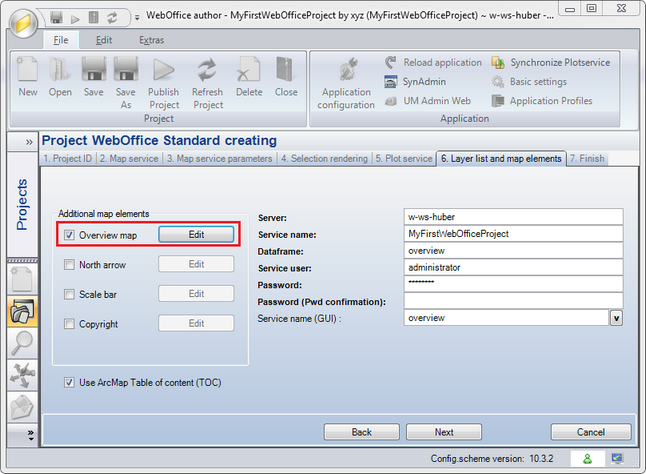
Create WebOffice Project wizard - Step 6 - Edit 'Overview map'
Check the box 'North arrow' to include and display an arrow on the map.
Instead of keeping the default option for the North arrow style the user can edit its properties by clicking on the 'Edit' button.
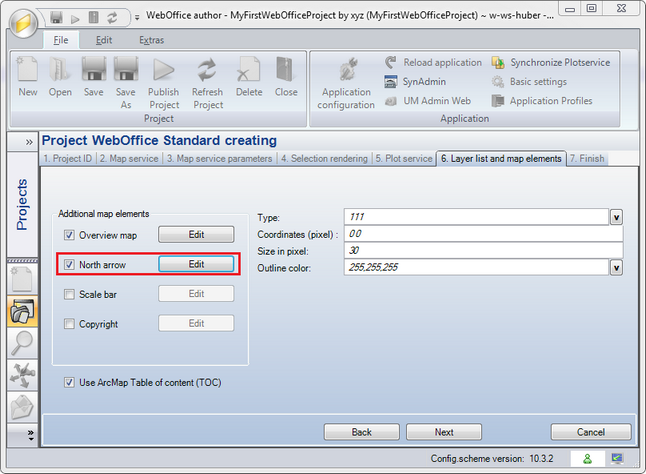
Create WebOffice Project wizard - Step 6 - Edit 'North arrow'
Check 'Scale bar' if to display a Scale bar in the map.
To change the Scale bar display style click 'Edit' to change the Scale bar properties.
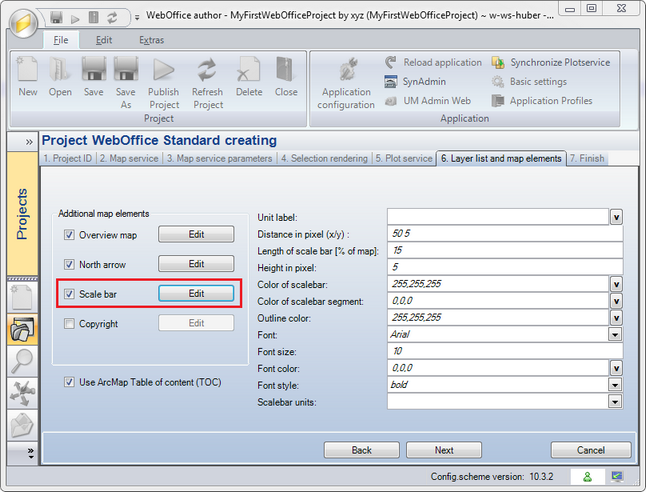
Create WebOffice Project wizard - Step 6 - Edit 'Scale bar'
Check the box in front of the 'Copyright' option to display a Copyright entry in the map.
To neglect the default Copyright style click 'Edit' to set the Copyright text and change the properties.
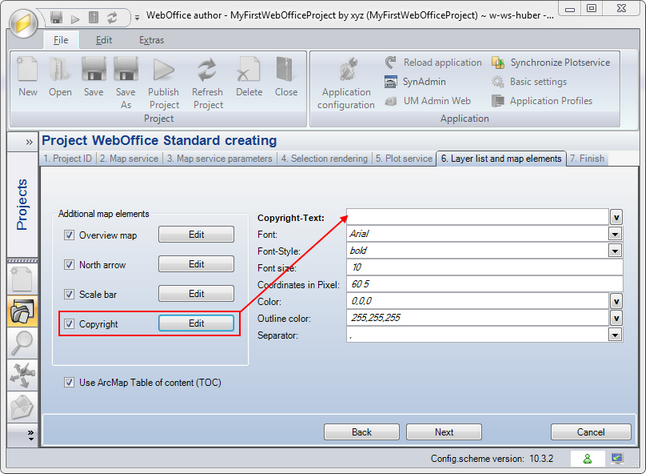
Create WebOffice Project wizard - Step 6 - Edit 'Copyright'
Check 'Use ArcMap Table of content (TOC)' to add a Table of content control in the WebOffice 10 R3 client.
Uncheck 'Use ArcMap Table of content (TOC)' not to include Table of content control in the WebOffice 10 R3 client at all.