Configure Data Exchange Path

In some cases (e.g. WebOffice plot and WebOffice ePaper) the GIS-Server memory capacity can be overloaded, if the Server Object Extension has to process too much data. In order to avoid these peaks, a data exchange directory has to be configured.

Procedure

To setup a data exchange path, please proceed with following steps:

•Open Application Configuration
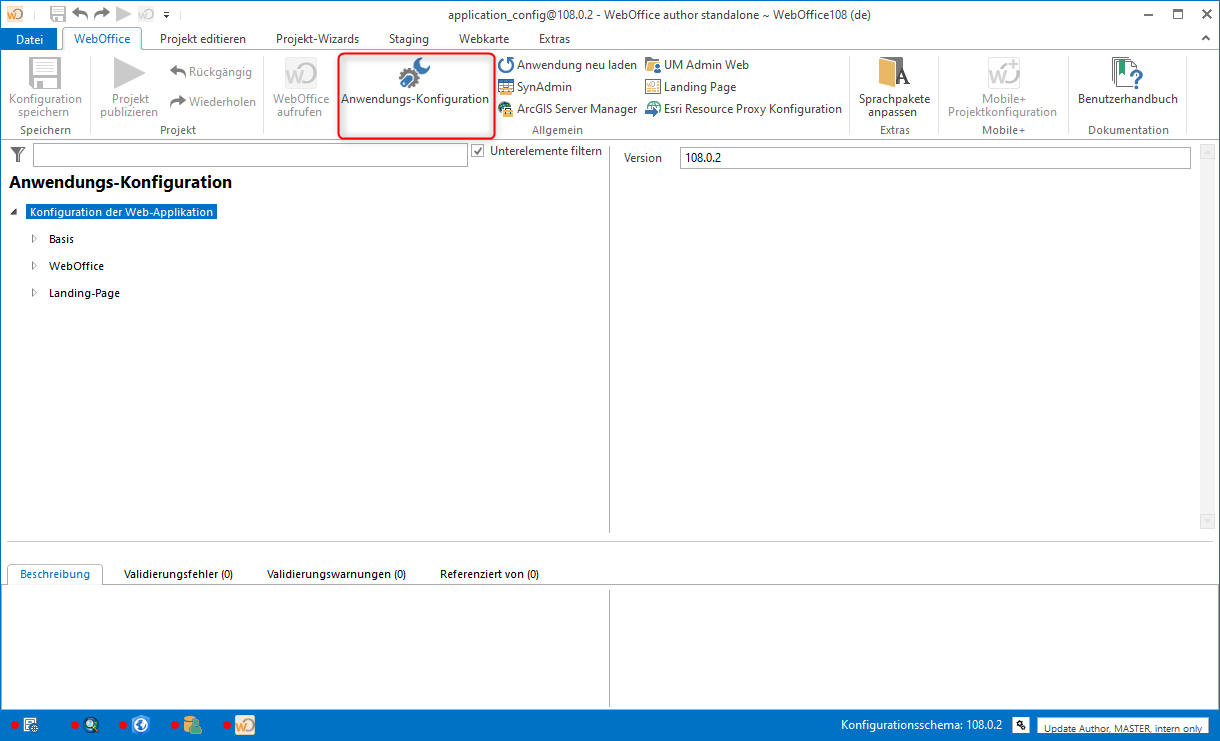
 

Open the application configuration

Open the application configuration

•In subelement WebOffice the element List of Data Share Directories must be added.
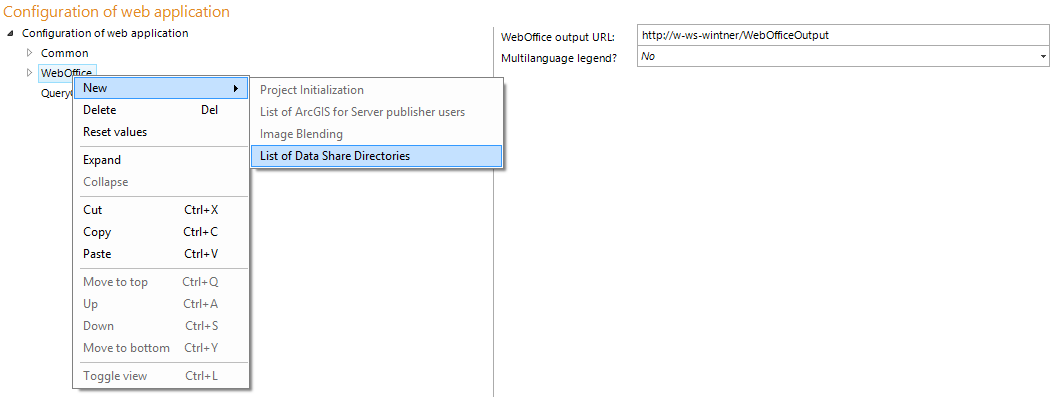
 

Adding "List of data share directories" 

Adding "List of data share directories" 

•Add element Data Share Path
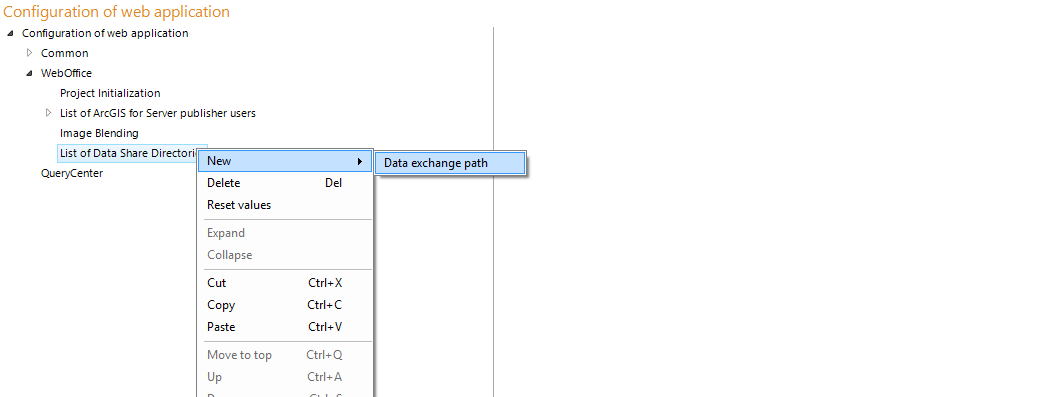
 

Adding the "Data Share Path"

Adding the "Data Share Path"

•Enter required parameters

icon_comment

The actual folder is copied to the server as described in chapter Publish "SynOutputService". You can also create a new folder at this point and skip the corresponding step of copying later.

Configure "ArcGIS Server Publisher User"

Configure "ArcGIS Server Publisher User"


Property

Description

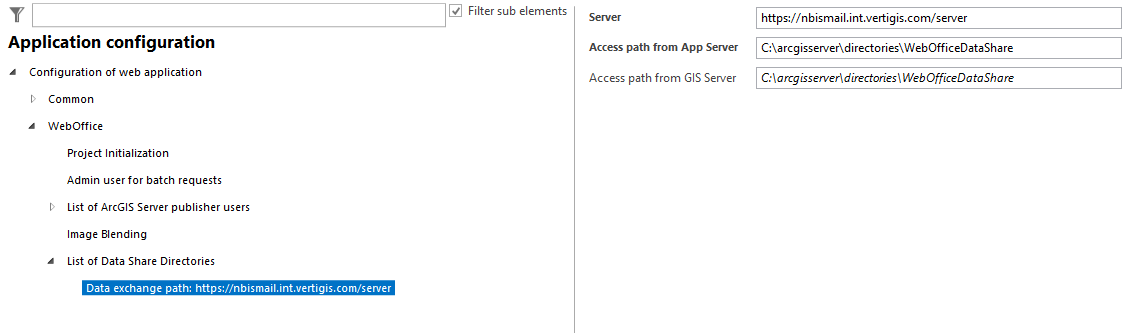
Server

Indicates the hostname of ArcGIS Server.

e.g. http://<server name>:6080/arcgis

Access path from App Sever

Access path from application server.

Specifies the path for accessing the data share directory from the WebOffice 10.9 R5 application server.

Define a local server drive for Single Server installation scenario or an UNC path for distributed installation scenario.


icon_comment

•It is recommended to create the data share directory on the GIS Server (e.g. C:\arcgisserver\directories)

•The directory must have the name WebOfficeDataShare, otherwise no Directory Cleanup will be performed (see: Cleanup of Directories)

•The same directory must be referenced as the one configured as Access path from GIS Server.

•The Windows user account(s) used for running ArcGIS Server and Apache Tomcat must have read and write rights on this directory.

•If the WebOffice 10.9 R5 application server and ArcGIS Server reside on same machine, you can specify the same path like for Access path from GIS Server attribute.

Access path from GIS Server

Access path from GIS Server.

Specifies the path for accessing the data share directory from the GIS Server.

Define a local server drive for Single Server installation scenario or an UNC path for distributed installation scenario.


icon_comment

•It is recommended to create the data share directory on the GIS Server (e.g. C:\arcgisserver\directories)

•The directory must have the name WebOfficeDataShare, otherwise no Directory Cleanup will be performed (see: Cleanup of Directories). In addition, for security reasons the SynOutputService only reads files from the directory if the access path from the GIS Server is a UNC path, is located below the ArcGIS Server folder directories (e.g. C:\arcgisserver\directories\WebOfficeDataShare) or points to a folder named WebOfficeDataShare. This also applies to mapped drives.

•If the directory is redirected on the ArcGIS Server by a symbolic link (mklink /d) or a junction, the link target must also be named WebOfficeDataShare. Alternatively, enter the UNC path directly as Access path from GIS Server. The links of the cluster concept (Tomcat folders output and WEB-INF\work) are not affected.

•The SynOutputService only reads the file types that WebOffice 10.9 R5 places in the data share directory: images (PNG, JPG, GIF, TIF, BMP), ZIP archives and layer files (.lyr).

•If the SynOutputService does not read a file for these reasons, e.g. printing with raster data, upload, thematic maps and the GeoTIFF extract do not work. The ArcGIS Server log of the SOE then contains the warning data path rejected.

•Recommendation: restrict outgoing SMB connections (port 445) of the ArcGIS Server machine by firewall to the file servers that are actually needed, e.g. the server hosting the data share directory.

•The same directory, that is configured Access path from App Server, must be referenced!

•The Windows user account(s) used for running ArcGIS Server and Apache Tomcat must have read and write rights on this directory.

•If the WebOffice 10.9 R5 application server and ArcGIS Server reside on same machine, you can specify the same path like for Access path from App Server attribute.

List of data share directories configuration

•Save application configuration

 

Save the application configuration

Save the application configuration


icon_comment

Always reload the application after changing the application configuration

Reload application

Reload application

icon_cross-reference

•For more information on configuring a data share path in WebOffice author, please have a look in chapter List of data share directories.

•To maintain the performance and stability of the WebOffice 10.9 R5 application, you can find more details about the configuration in Cleanup of Directories.