Install WebOffice Extensions |
  
|
Install WebOffice Extensions |
|
Note: Depending on your server scenario, there are two ways to install the WebOffice Extensions:
| 1. | The setup incl. the ArcGIS Engine has only to be installed on server machines without ArcGIS Desktop or ArcGIS Engine. In that case please download the corresponding setup here. |
| 2. | For all other scenarios the WebOfficeExtensions.msi from WebOffice10.3-DVD\Software\WebOffice extensions\ArcGIS10xx\English\WebOfficeExtensions.msi has to be used. |
Important Note:
| • | The WebOfficeExtensions.msi has to be executed as administrator because it creates registry keys for the ArcGIS Engine. In order to do this run the command prompt as administrator and start the WebOfficeExtensions.msi with the command prompt. |
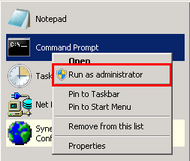
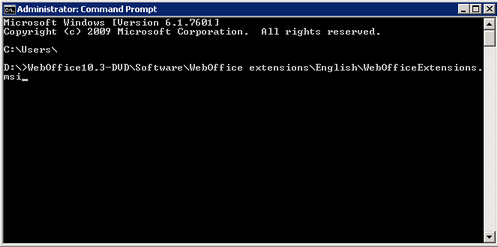
Note: If you experience troubles installing the setup you can log the installation steps using the msiexec -i installation functionality. See chapter Install/Uninstall Problems during Setup Process for details how to log the setup process.
Note: Dependent on your server machine the installation process of the WebOffice extensions 10.3 might use more time (about 20 minutes) as usual. We recommend to wait for a successful end of the installation and not to cancel the installation at an early stage.
Note for WebOffice extensions 10.3 with build number 9596 or lower: It is recommended to create a user (local or domain user) before executing the setup, that will be used for the COM+ applications. This user will be specified during the setup process.
Depending on your server scenario (see note above) download in the first step the corresponding WebOffice extensions 10.3 installation file here or use the setup from WebOffice10.3-DVD\Software\WebOffice extensions\ArcGIS10xx\English\WebOfficeExtensions.msi. Please use for entering the download page the same login data as used for the download of the WebOffice10.3-DVD. On the download page navigate to WebOffice extensions and select the installation file corresponding to your system:
| • | Choose the language of the installation file: English or German |
| • | Choose the the WebOffice Version |
| • | Choose the ArcGIS Version: ArcGIS 10.2.1, ArcGIS 10.2.2 or ArcGIS 10.3 |
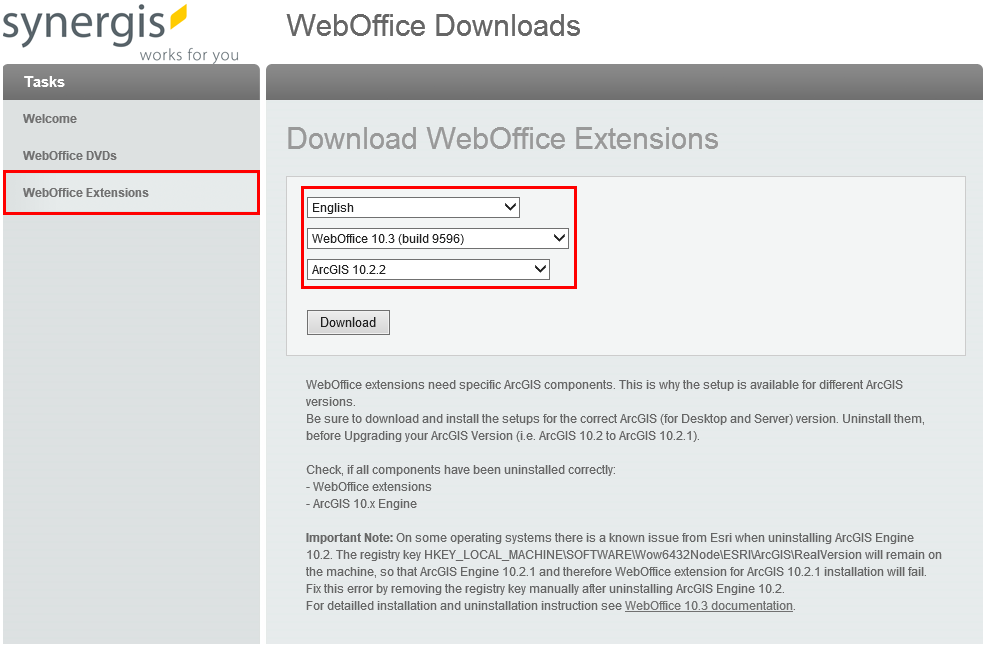
Download the corresponding installation file
Note: If you don't have any or only a bad connection to the internet, download the installation file in advance.
Note: It is recommended to create an own user (locale or domain user) before installing the WebOffice extensions 10.3. This user can be used for the installation process.
Before you can start installing the WebOffice Extensions, you have to copy some files first. Go to WebOffice10.3-DVD\Software\WebOffice directories\ and copy the following folders to <ArcGIS Server location>\directories\. By using a subdirectory of the <ArcGIS Server location>\directories it is ensured that the file system rights for accessing the folders are correctly set:
Mandatory:
| • | ServiceDocuments - used for saving your MXD documents. This way, you always know where to find your work documents. |
| • | WebOfficePlotTemplates - used for saving your plot templates (file extension .layout) and the SynPlotService.mxd that is used in the printing process. |
| • | WebOfficeDataShare - used for saving data which has to be processed by the SOE in order to avoid memory heaps. Skip copying this folder it it was already created during Configure WebOfficeDataShare. |
Optional:
| • | WebOfficeePaperTemplates - used for saving your WebOffice ePaper templates and the SynePaperService.mxd that is used in the ePaper generating process. |
| • | WebOfficeExport - used for saving all data relevant to WebOffice extract server. Copy it if you plan to use WebOffice extract server. |
In the next step execute the downloaded WebOfficeExtensions.exe and agree the license terms and conditions.
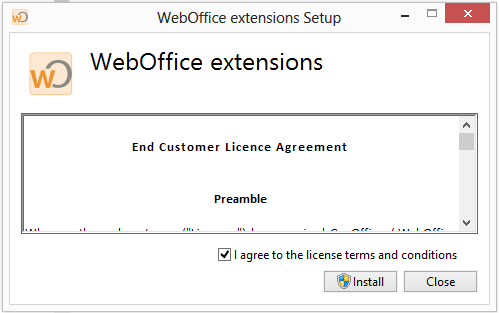
WebOffice extensions 10.3 license agreement
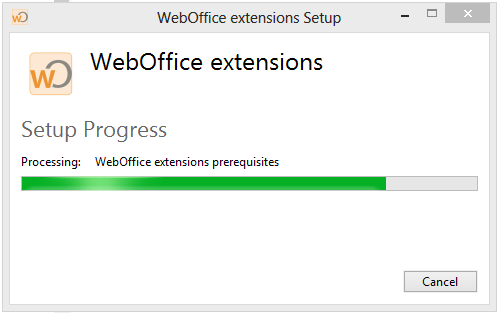
WebOffice extensions 10.3 setup
After the license agreement was confirmed and the installation type was specified, a wizard window for the WebOffice extensions 10.3 set up will be displayed.
Here a WebOffice extensions 10.3 user must be defined. This can be a domain user or a local user.
Note: Using WebOffice 10.3 SP2 Extensions no COM+ components are applied. The process will be managed in a own Library. In consequence there are no more COM+ components, but only the WebOffice Extension service.
Note for WebOffice extensions 10.3 with build number 9596 or lower: WebOffice extensions for 10.2.x uses COM+ components an the user for the WebOffice COM+ components must be defined.
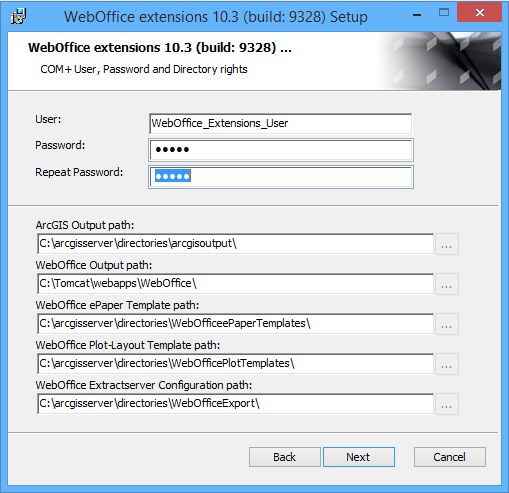
Installation with a local Windows user
In case of a Installation with a Domainuser, the user must be named like following: [DOMAINNAME]\[User].
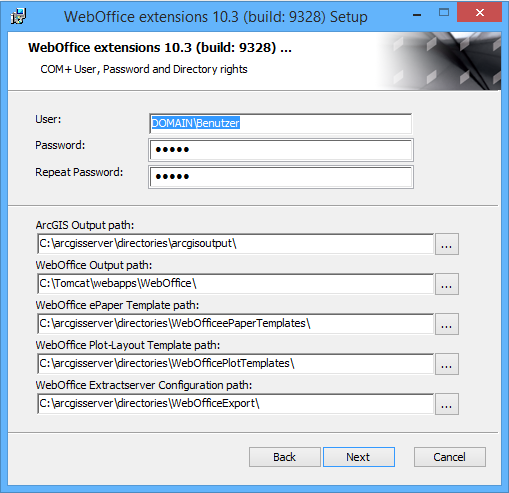
Installation with a WebOffice extensions 10.3 Domain user
In the following step a COM+ user with password can be specified, that will be configured automatically for the COM+ Applications (Identity). Furthermore the needed rights on specific folders will be configured.
Note: The user permissions for the directories can only be set correctly for single server system. For distributed server environments, the permissions on the directories must be set manually after the installation.
Note: This user will not be created by the setup. The user must be generated by the IT administrator before executing the setup. You will find more details about this user in Adapt COM+ Applications.
WebOffice extensions 10.3 Installation Setup
Note: All components of WebOffice extensions 10.3 will be installed to C:\ProgramFiles(x86)\SynerGIS\GeoOffice, by default.
If the components of the WebOffice extensions 10.3 will be installed to another directory than the default, keep in mind that you also have to install possible GeoOffice moduls to this directory.
Note for WebOffice extensions 10.3 with build number 9596 or lower: If in the settings of the Com+ components IP in the tab general in the ArcGIS 10.3 for Server Manager the SynerGIS Server Object Extensions are not defined as local (127.0.0.1) in the functions, a Extensions config-file must be configured. The path to the configfile: SynerGIS.WebOffice.Extensions.exe.config is: C:\Program Files (x86)\SynerGIS\GeoOffice\Bin. In this configuration the IP-address of the server with the Extensions, the Port, the max. Threads and the max. connections can be defined.