Problem Analysis |
  
|
Problem Analysis |
|
This chapter is about issues with WebOffice extensions 10.3 and how to analyse and solve them. Before requesting WebOffice-Support please check the following steps.
Note: Before requesting WebOffice-Support also check Request Support.
Note: Before requesting WebOffice-Support also check, if the issues occur with the current software version. You can download the current versions from http://resources.weboffice.mysynergis.com/WebOffice103/.
Note: Find more detailed information about the procedure of the plot process in chapter Plot process procedure.
At the start it is useful to isolate the issue by analyzing the following cases:
1.Print tool is not available
2.Print does not work (print causes an error)
3.Printing needs too much time
4.Plot quality is bad
1) If the print tool is not available in the WebOffice 10.3 SP2 client, please check as follows:
•Basics
oPrint tool correctly configured in project configuration, see Print
oPlot layouts available in the correct directory, see Publish the SynOutputService
oCheck, if SynPlotService.mxd and SynePaperService.mxd are available in the correct directory and the latest version, please download the latest MXDs for WebOffice extnsions from http://resources.weboffice.mysynergis.com/WebOffice103/
•SynAdmin > Tab "MapServices": Is a SynerGIS SOE Gateway Version available? If no:
oDo the Extensions Components run?
Important Note: Adaption of the Com+ application refers only to the SynerGIS WebOffice Extensions Service with build number 9596 or lower. If SynerGIS WebOffice Extensions Service with higher build number than 9596 is in use, this process is managed in an own library and no COM+ components are in use anymore. For WebOffice extensions 10.3 with higher build number than 9596 users this chapter is void.
oIs a version available when testing with Extension Standalone Testclient?
▪If yes, issue in the connection WebOffice / service (configuration, firewall, ...)
▪If no, issue in the Extensions service / component (logging, user rights)
•Analyse WebOffice log file (see chapter SOE Logging) for ERROR and WARNINGS referring to plot issues
2) If the print output does not work (print tool available in the WebOffice 10.3 SP2 client, but print does not work):
•Is a dynamice plot MXD created? (usually in C:\arcgisserver\directories\arcgisoutput\SynOutputService_MapServer)
oIf no: issue during prepare/assemble process
▪check if SynerGIS WebOffice extensions service (Windows services) is logged on as own extensions user (not local system)
▪check the user rights for every path:
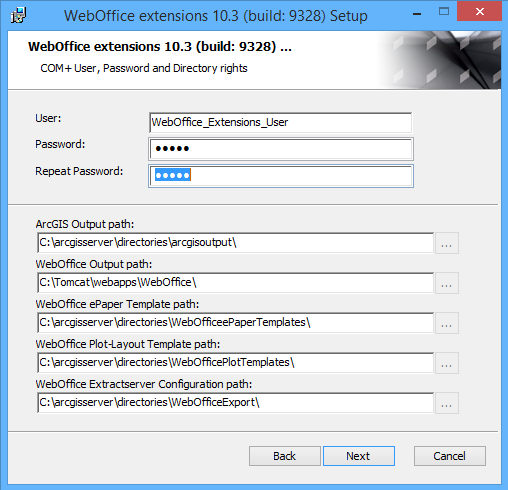
Folder permissions for the extensions user
oIf yes: Analyse the plot MXD (possible to open? read-only? Missing Datasources in Print MXD?...)
oIf yes, simulate a print with Extensions Standalone Testclient
oAnalyse WebOffice log file (see chapter SOE Logging) for ERROR and WARNINGS referring to plot issues
3) If printing needs to much time:
•How long does a high resolution print (A4, A3 - format "PDF") need exactly?
•What step does need what time?
oPrepare (collecting the content from all layers)
oAssemble (insert and assemble the collected content and layer infos)
oOutput (Create output - write the plot MXD to the output directory)
You will get those information by logging the categories GEOSERVER and BRIDGE and trying to print in the WebOffice 10.3 SP2 client.
•How long does it last to print directly in ArcMap (in dynamic plot MXD)?
•How long does it last to print in the Extensions Standalone Testclient?
•How many vector and raster topics are part of the output?
•What is the performance whit/without markups?
•Are external services part of the output? If yes, which?
•Analyse the plot MXD via MXDPerfStat, see chapter Optimize the ArcMap Document with Mxdperfstat
•Is the layout file correct? (e.g. icons without any reference to an image, ...)
4) If plot quality is bad:
•The printed map is shown blocky or strongly pixelated - the reason is rastering. See chapter Check the layer for rastering
oThe reason for the bad output quality is:
▪tendentious behaviour of ArcGIS to raster exported PDFs
▪suboptimal symbology in MXD
▪transparent layers always cause rastered PDFs
▪if the layer e.g. has a LineFill symbology with an outline on the layer at the bottom --> the hatching of the layer above fragments the outline
•increase anti-aliasing of the SynoutputService
•The quality can be increased by printing with high resolution
Note: Use the markup feature classes in the SynOutputService directly from an eGDB (SDE) to avoid toubles with fGDB. See more details in Put Markup Feature Classes into SDE.