Put Markup Feature Classes into SDE |
  
|
Put Markup Feature Classes into SDE |
|
When having issues with the markup file-geodatabases, move the markup feature classes used by the SynOutputService into an eGDB (SDE).
Perform the following steps:
1) Open the SynOutputService.mxd in ArcMap and remove the three layers from file-geodatabases syn_markup_02, syn_markup_03 and syn_markup_04.

Remove layers from fgdb syn_markup_02, syn_markup_03 and syn_markup_04 in SynOutputService.mxd
2) Add a connection to the SDE and create a new feature dataset.
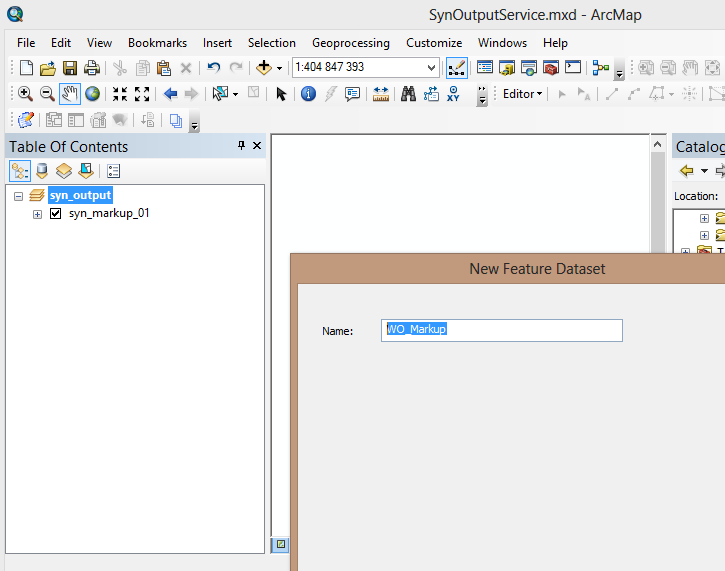
Create a new feature dataset in SDE
3) For the new feature dataset choose as coordinate system WGS_1984_Web_Mercator_Auxiliary_Sphere.
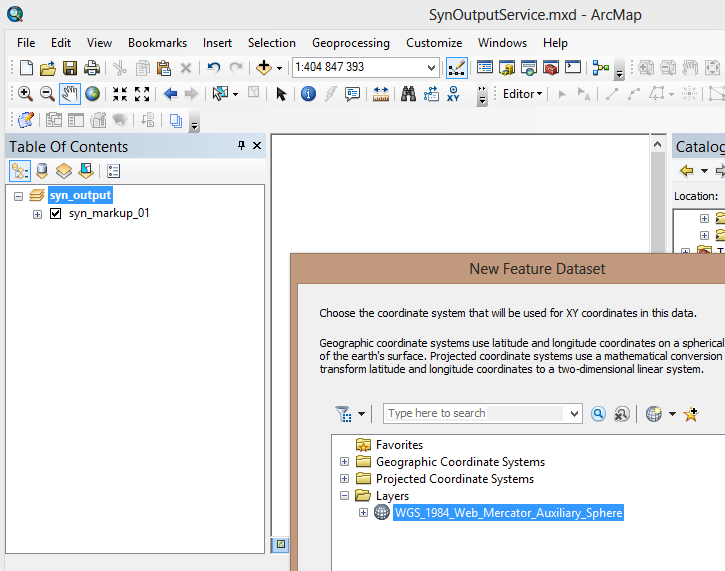
Choose coordinate system for the new feature dataset
4) Import the four feature classes from the file geodatabase syn_markup_01.gdb (by default in C:\arcgisserver\directories\ServiceDocuments\SynOutputService\syn_markup_01.gdb) to the new feature dataset.
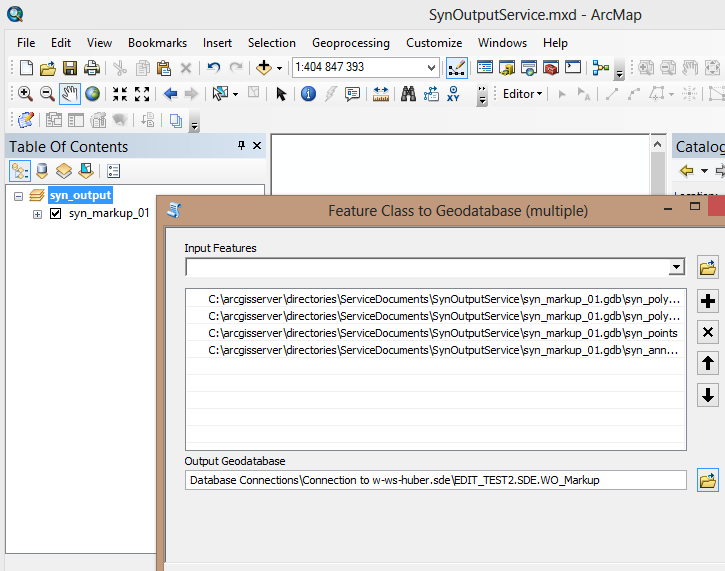
Import feature classes to new feature dataset in SDE
5) Adjust the data sources for each feature class from layer syn_markup_01 by pointing to the new feature classes in SDE.

Adjust data sources of each feature class of layer "syn_markup_01"
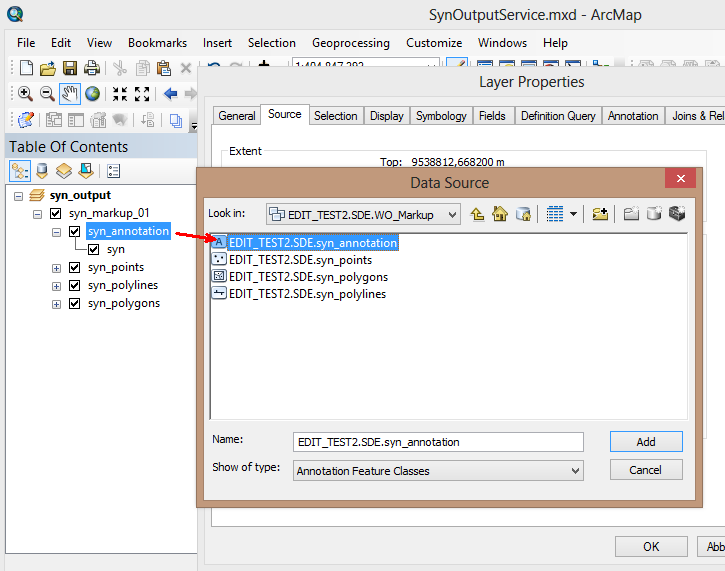
Adjust data sources of each feature class of layer "syn_markup_01"
6) Finally overwrite the existing map service SynOutputService.
Note: If you get troubles while overwriting the SynOutputService please delete the existing SynOutputService from ArcGIS Server and publish a new one. In that case please consider the settings from Publish the SynOutputService, Add Dynamic Workspaces to SynOutputService and Activate SOE on a Map Service.

Overwrite the existing SynOutputService
Assure having performed all steps correctly by calling the REST interface of the SynOutputService in the browser: http://<server>:6080/arcgis/rest/services/SynOutputService/MapServer
If the structure under "Layers" looks like in the screenshot, the steps have been performed correctly and the markup feature classes have been shifted to the SDE.

REST interface of SynOutputService
For every output the markups will be managed in the SDE.
Note: Please consider, that you only have to put the Markup-Feature Classes into SDE and not also the Upload-Feature Classes. Putting the Upload-Feature Classes into SDE could affect the WebOffice upload-functionality in a negative way!