New Connection |
  
|
New Connection |
|

GIS data sources are automatically taken over in the template. In addition to the GIS data sources, external data can be integrated in the template with the designer. The first step is creating a new connection. For this select New Connection... You have six different join types available:
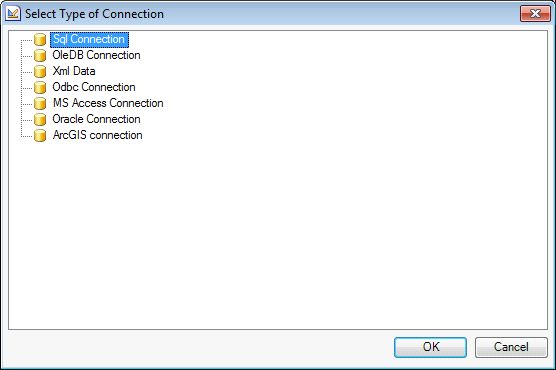
Select connection type.
•SQL Connection
A SQL connection can be used when you want to build for instance a connection on a SQL database.
Select the SQL connection type and click Build.
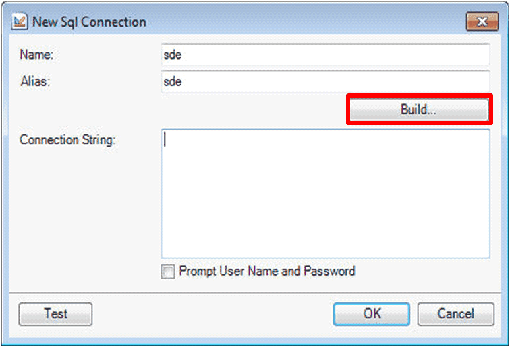
New SQL Connection
For creating the connection indicate the server name of the SQL server, the name of the database and the authentication.
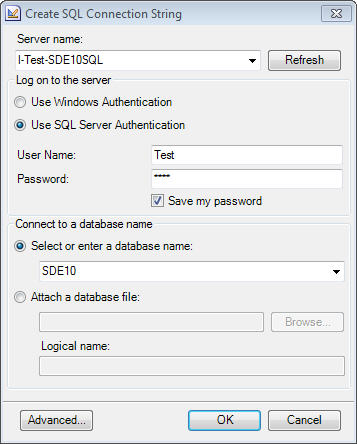
Configure SQL connection
The connection string is displayed in the window of the connection string. The connection string of a SQL connection includes the parameters Data Source / Initial Catalog / User / Password. With Test you can verify the configured SQL connection.

SQL -Connection String
You can find more information about creating Connection Strings at http://www.connectionstrings.com/.
•OleDB Conncetion
An OleDB connection can be used relative to the driver when you want to create for instance a connection on a SQL database or a Microsoft Access database or a personal geo database.
In this example a connection to a personal geo database (.mdb) is created. The name and the alias are defined for the OleDB connection. In the next step the connection to the database is created.
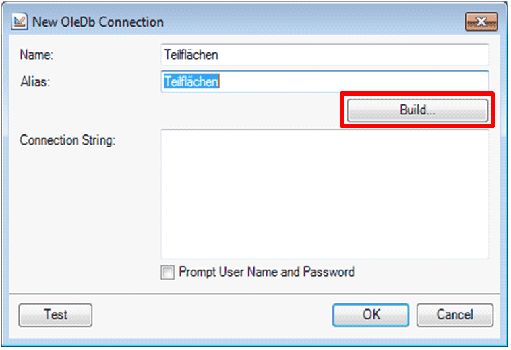
New OleDB connection
In the Properties dialog box of the data link, the database provider (e.g. Microsoft Jet 4.0 OLE DB Provider) and the connection (selection of the database) is defined.
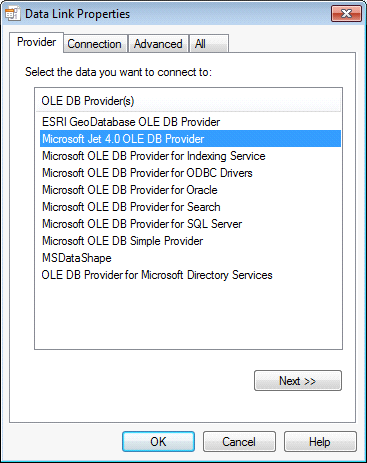
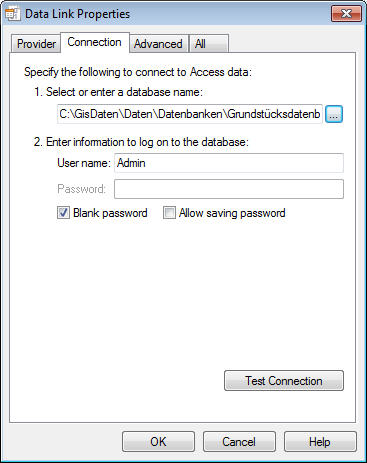
Data Link Properties
When the connection is ready created it can be tested.

Testing connection
You can find more information about creating Connection Strings at http://www.connectionstrings.com/.
•Xml Data
•Odbc Connection
An Odbc connection can be used when you want to create for instance a connection on an Oracle database.
Select the Odbc connection type and click Create. In the Odbc Connection dialog box click Build.
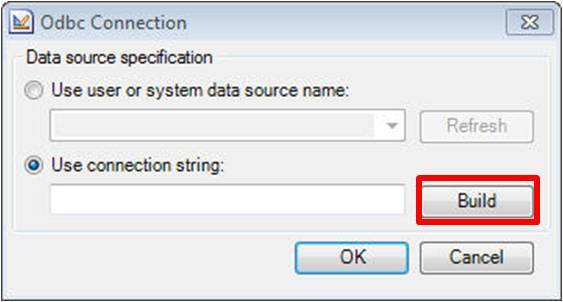
Building new connection string
In case the ODBC data source does not exist yet on your system, create a new data source by clicking New...
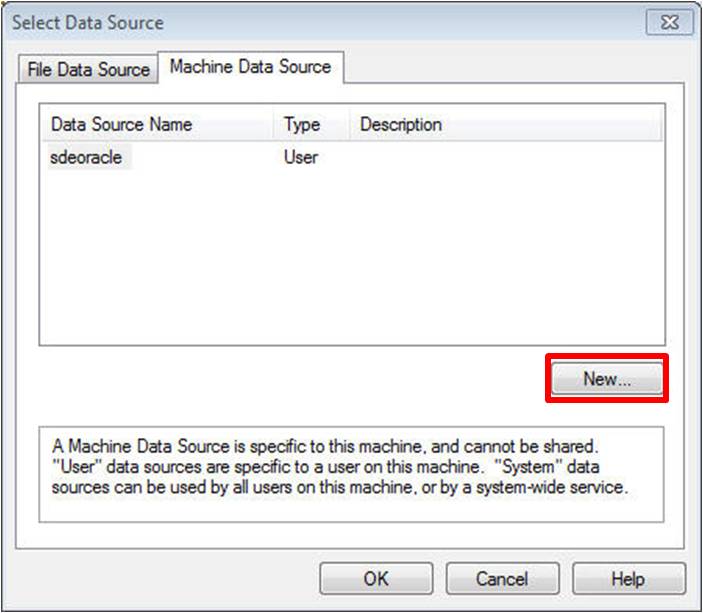
Creating New Data Source
Select the type User Data Source or System Data Source according to the desired availability.
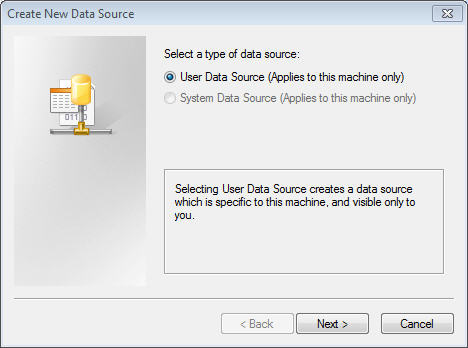
Selecting Data Source
Select a driver for your data source. In this example an Oracle driver (OraClient 11g_home1) is selected that was installed together with the Oracle client.
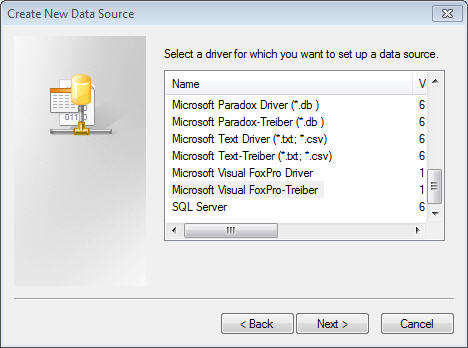
Selecting Driver
Create the Data Source Name, the Service Name as well as the User ID. Subsequently test the connection by clicking Test Connection.
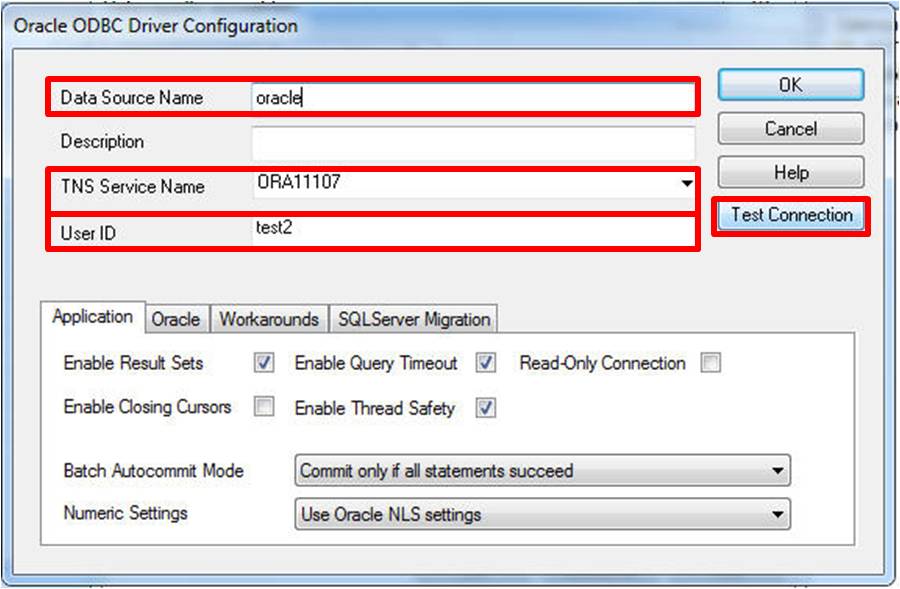
Driver Configuration
When testing the connection you will be prompted to enter the password. Type the password and then click OK.
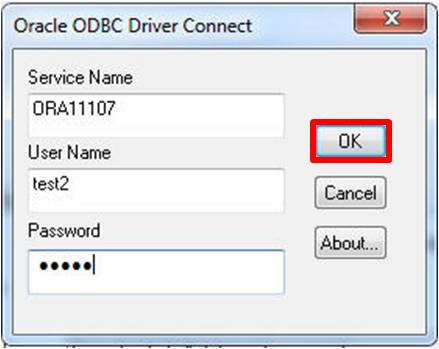
Driver Connection
The connection string is displayed in the connection string window. The connection string contains some redundant attributes that you cannot remove.
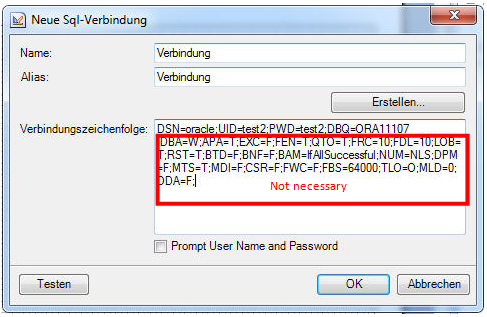
Connection String
The Connection String for the ODBC connection on the Oracle database must contain following parameters: DSN / UID / PWD / DBQ
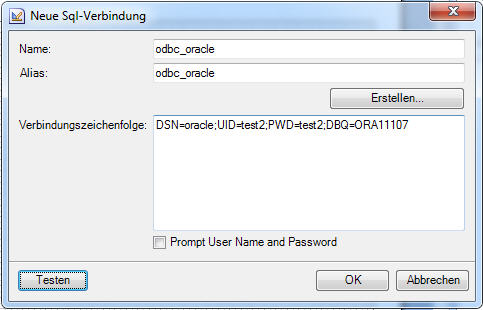
Connection String 2
Subsequently click Test to check whether the connection could be successfully built.
You can find more information about creating Connection Strings at http://www.connectionstrings.com/
•MS Access Connection
A MS Access Connection can be used when you want to create for instance a connection on a Microsoft Access database or a personal geodatabase.
The name and the alias are defined for the MS Access connection. In the next step the connection to the database is created.

New MS Access Connection
Select the type for the OleDB driver; on one hand the Access database can be an Office 2000-2003 (used driver: Microsoft.Jet.OLEDB.4.0) or an Office 2007 (used driver: Microsoft.ACE.OLEDB.12.0). Load the desired database (.mdb or .accdb) over the data path. In case your database is protected with a password, enter the password for the login.
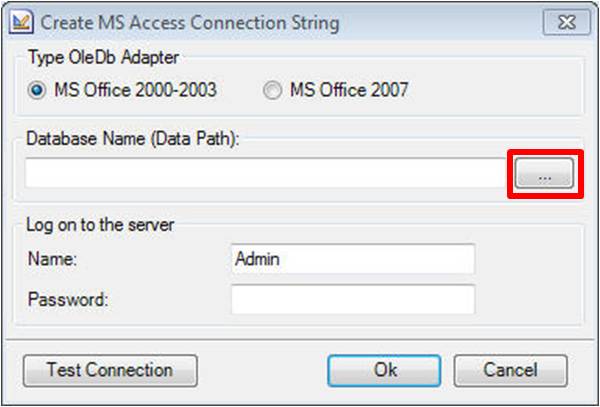
Configuring Connection
Test the connection with the button Test Connection.
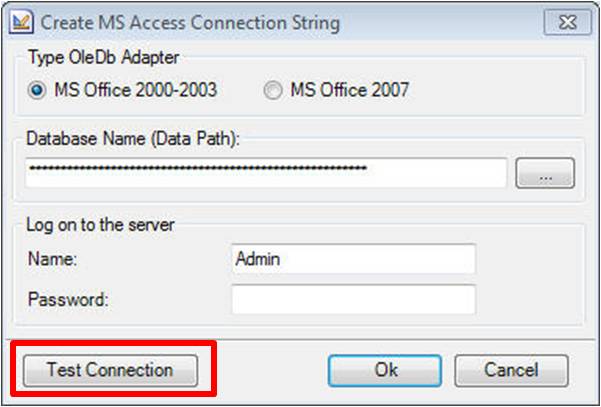
Configuring Connection 2
The connection string is displayed in the connection string window.
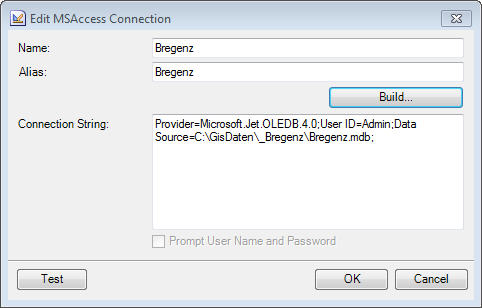
You can find more information about creating Connection Strings at http://www.connectionstrings.com/.
•Oracle Connection
After successful testing the connection is listed with the data sources.