WebOffice plot extension (GIS Server) |
  
|
WebOffice plot extension (GIS Server) |
|
The WebOffice plot extension extension needs to be installed on the same server where ESRI ArcGIS Server is installed and running. If an old WebOffice plotten is already installed it has to be uninstalled. Refer to chapter Updating WebOffice Plotten ff. for details.
WebOffice plot extension setups on WebOffice10R3-DVD:
WebOffice10R3-DVD\Software\WebOffice extensions\English\WebOfficeExtensions.msi (English version)
WebOffice10R3-DVD\Software\WebOffice extensions\German\WebOfficeExtensions.msi (German version)
Note: If you experience troubles installing the setup you can log the installation steps using the msiexec -i installation functionality (msiexec -x for uninstall). Type msiexec in your command line window to get an overview of the logging options. E.g. install the setup with these options to get a log file with detailled information: msiexec –i <path to setup.msi> /l*v <path to create log file in>\install.log
Note: To be able to install the WebOffice plot extension the logged on user executing the setup has to be member of the agsadmin group. Therefore it is recommended anyway that the local machine administrator account of the agsadmin group.
IMPORTANT Note: Before starting the setup for the WebOffice plot extension, all the ArcGIS for Server object configurations must be moved over to a backup location (e.g. back them up to C:\archive\cfg and delete all configuration files from <ArcGIS Server installation directory>\server\user\cfg). Stop and restart the ArcGIS Server Object Manager service then.
This has to be done before installing ANY WebOffice extension (WebOffice plot extension, WebOffice plot author, WebOffice ePaper, WebOffice ePaper author, WebOffice extract server and WebOffice extract server author) as well as ANY of the SynerGIS GeoOffice components (e.g. GeoOffice symbologies)!
After the installation copy back all the ArcGIS for Server object configuration files from the backup location into <ArcGIS Server installation directory>\server\user\cfg.
If the SynerGIS GeoOffice components have changed, please restart the server machine after installation, so that ArcGIS for Server will remark the changed components.
Note that for proper display of the ArcCatalog property page for WebOffice plot extension extension, the software components documented in chapter WebOffice plotten author (Administrative computer) must be installed on the machine where ArcCatalog is used.
You can check correct installation of the WebOffice plot extension server extension later on by checking the Map service capabilities – a ‘WebOffice plotten’ capability must be available if you look on the Service properties of the stopped Server object.
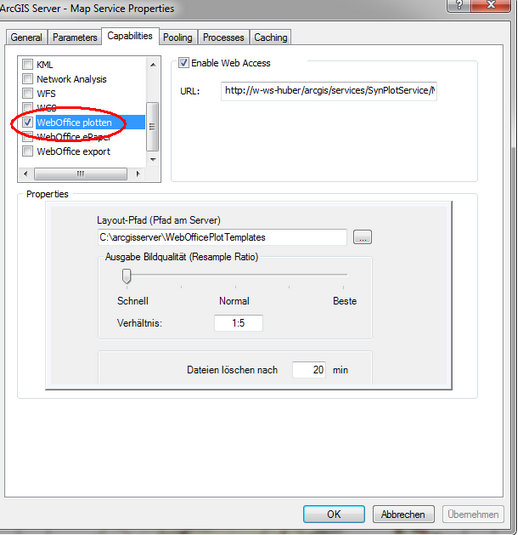
WebOffice plotten capability
Note: Please check on all GIS Servers, that the local ArcGISSOC account has read, write, delete and change access rights for the local Temp directory (by default C:\Windows\Temp).
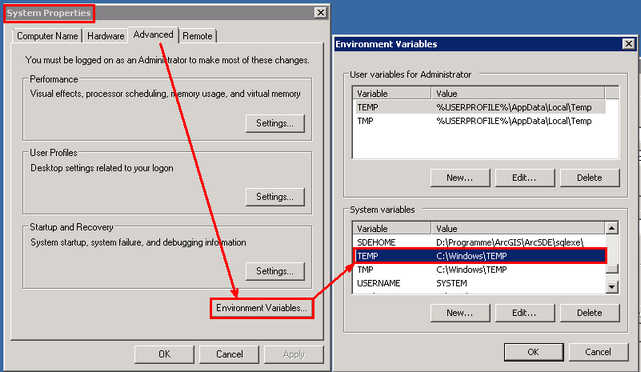
Local Temp directory setting

File system access rights for ArcGISSOC account