Option B: |
  
|
Option B: |
|
Note that using Option B is only supported for IIS 7.x
Backup your Tomcat installation folder before installing the ISAPI Redirector.
Extract 'Apache_Tomcat_Connectors.zip' from WebOffice10R3-DVD:
WebOffice10R3-DVD\Software\Miscellaneous\Apache Tomcat Connectors\Apache_Tomcat_Connectors.zip
•Clear Windows Registry if you had already installed any version of Apache Tomcat Connectors/ ISAPI Redirector.
•Precondition: Java JDK 6 (64bit) - recommended Java JDK 6 Update 37 - upgrade Java to this version if a previous version is installed.
•Precondition: Apache Tomcat 6 (64bit) at 'C:\Tomcat' - recommended Apache Tomcat 6.0.36 - upgrade Tomcat to this version if a previous version is installed.
•If you use a newer version of Java or Tomcat, please contact web-support@mysynergis.com to verify whether this version has already been released.
The further steps are:
1.Stop Apache Tomcat
2.Copy uriworkermap.properties to 'C:\Tomcat\conf'
3.Copy workers.properties.minimal to 'C:\Tomcat\Conf'
4.Copy web.xml to 'C:\Tomcat\Conf'
5.Copy context.xml to 'C:\Tomcat\Conf'
6.Copy server.xml to 'C:\Tomcat\Conf'
7.Create Directory 'C:\Tomcat\bin\win'
8.Copy isapi_redirect.dll to 'C:\Tomcat\bin\win'
9.Copy isapi_redirect.properties to 'C:\Tomcat\bin\win'
10.Adjust parameters in isapi_redirect.properties to fit your installation/ directory names.
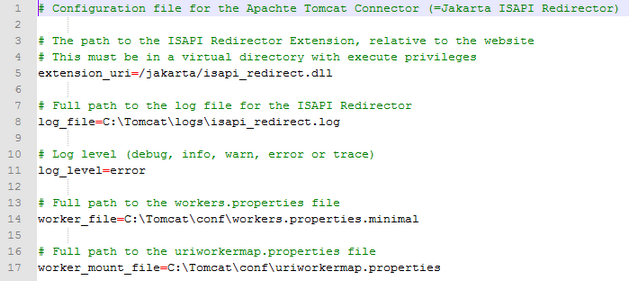
Adjust parameters in 'isapi_redirect.properties'
Perform the steps in Internet Information Services (IIS) 7.x:
•Create virtual directory "Jakarta" and set the file path to "C:\Tomcat\bin\win".

Add Virtual Directory 'Jakarta' in ISS Manager
•In IIS Manager, on the left panel of the window, navigate to 'Default Web Site' and click it, then double-click 'Authentication' and click 'Anonymous Authentication'. Verify that it is 'Enabled'.
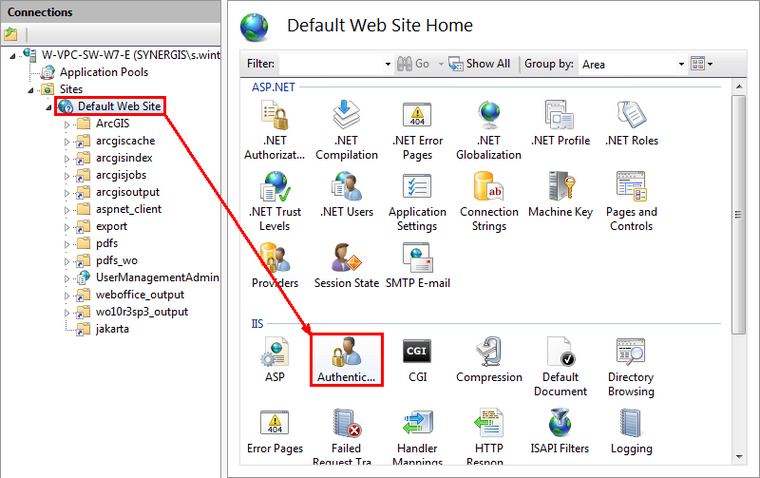
Open Authentication of Default Web Site in IIS Manager

Varify that 'Anonymous Authentification' is enabled
•Navigate back to 'Default Web Site', expand it and select 'Jakarta'. Double-click 'Authentication' from the middle panel. Click 'Anonymous Authentication'. Verify that it is 'Enabled'.
•Click 'Jakarta' again. Double-click 'Handler Mappings'. If ISAPI.dll is disabled, select 'Edit Feature permissions' from the right-hand side and enable 'Execute'.
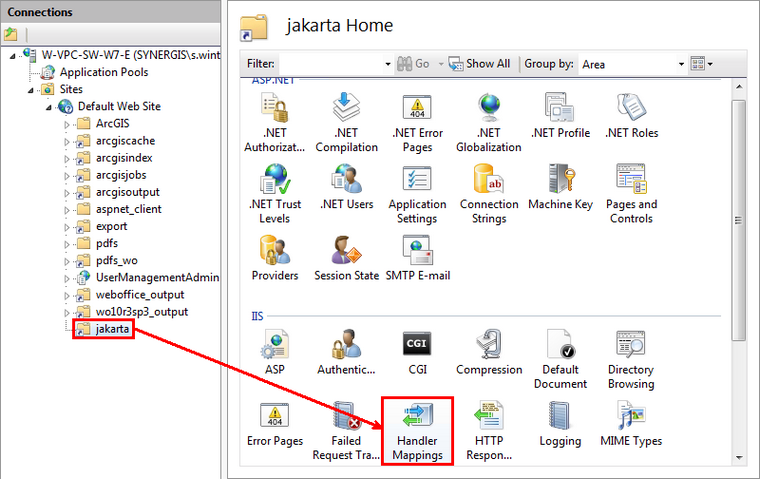
Open Handler Mappings of jakarta virtual directory in IIS Manager
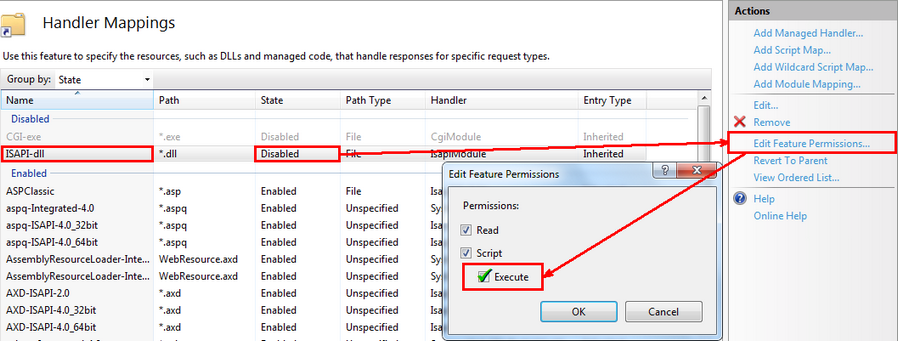
Enable Execute for Edit Feature Permissions
•Add 'Jakarta' as an ISAPI-Filter in the 'Default Web Site'. Go to 'Default Web Site', double-click 'ISAPI-Filter' and click 'Add...'.
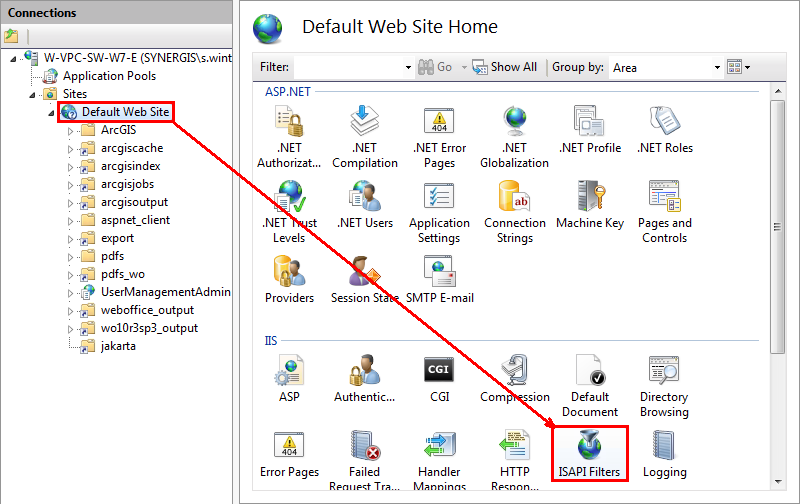
Go to Default Web Site and open ISAPI Filters in IIS Manager
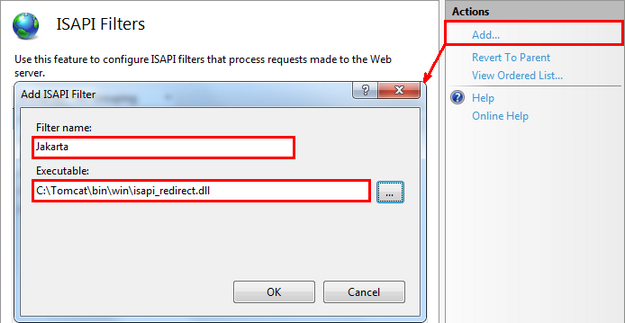
Add ISAPI Filter 'Jakarta'
•Add 'Jakarta' as an ISAPI/CGI-Exception on the WebServer. Click in the left field on your webserver, then on 'ISAPI and CGI Restrictions' and here on 'Add...'. Check the box 'Allow extension path to execute'.
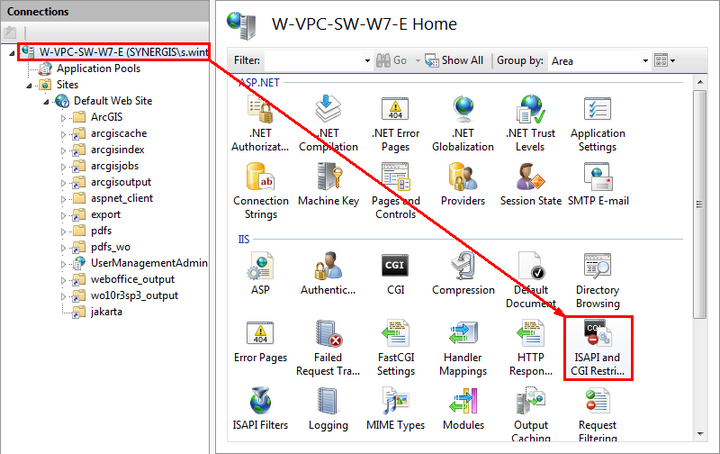
Navigate to the webserver and open ISAPI and CGI Restrictions in IIS Manager
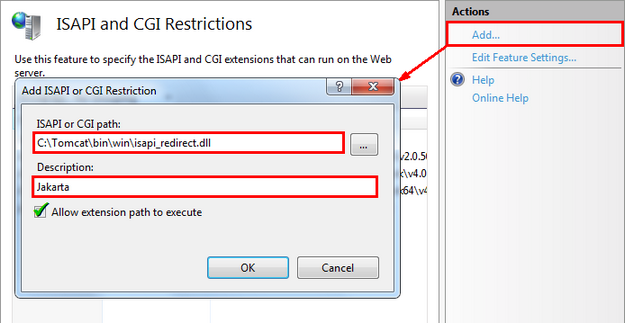
Add ISAPI or CGI Restriction
•Also take care the permissions (Full Control) on directory 'Java' (e.g. C:\Program Files\Java) and on the directory, which contains the 'isapi_redirect.dll' (e.g. C:\Tomcat\bin\win), are set to 'IUSR', 'Authenticated User' and 'Network Service'.
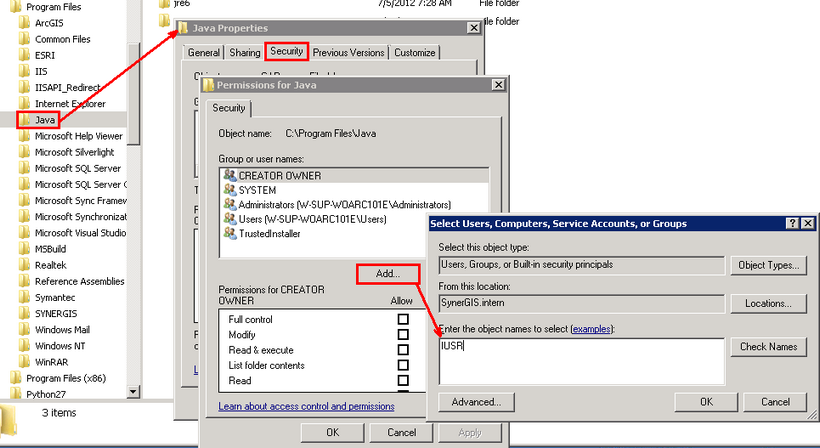
Add 'IUSR', 'Authentificated User' and 'Network Service'
•In the last step start Apache Tomcat.