WebOffice author standalone setup

The WebOffice author standalone installation files can be found here: https://resources.weboffice.vertigis.com/WebOffice109R5/. After the download, you have to unzip the folder and choose your language (german or english). Please be aware to click on Install ArcMap Connector Extension and Install ArcGIS Pro Connector Add-In during the installation. After the setup it is necessary to connect WebOffice author standalone with ArcMap and/or ArcGIS Pro. Finally you can configure the application configuration and work with the WebOffice author standalone. Furthermore it is possible to install the VertiGIS Studio Printing Engine Layout Designer via the provided checkbox.
|
CAUTION! •With WebOffice 10.8 the working directory of the WebOffice author standalone changes. To continue using existing profiles, they must be exported before uninstalling and re-imported after reinstallation. If a staging mapping is saved for taking projects productive, the corresponding .json files must be transferred from %APPDATA%\Roaming\SynerGIS\WebOfficeAuthorStandalone\UIData\GoLiveStagging to %APPDATA%\Roaming\VertiGIS\WebOfficeAuthorStandalone\UIData\GoLiveStagging. •Since WebOffice 10.8 the WebOffice author standalone is delivered as a 64-bit application. Please note that the ArcMap Connector, which is responsible for the connection to MXDs, is still delivered as a 32-bit application as it is based on the 32-bit based ArcObjects. |

WebOffice author standalone can be used with and/or without ArcMap/ArcGIS Pro. If WebOffice author standalone is to be used with ArcMap/ArcGIS Pro, the respective basemap has to be selected in ArcMap/ArcGIS Pro. This way WebOffice author standalone connects to the respective application. Additionally, there is the possibility to install the VertiGIS Printing Layout Designer by using the corresponding checkbox.
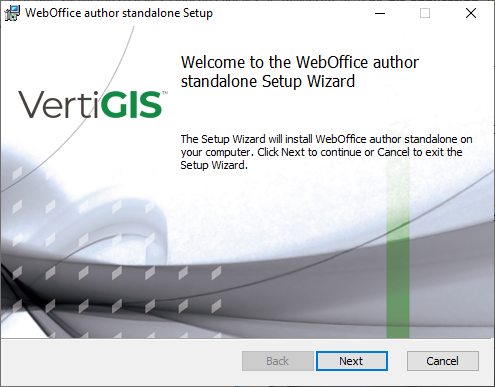
WebOffice author standalone Setup: step 1
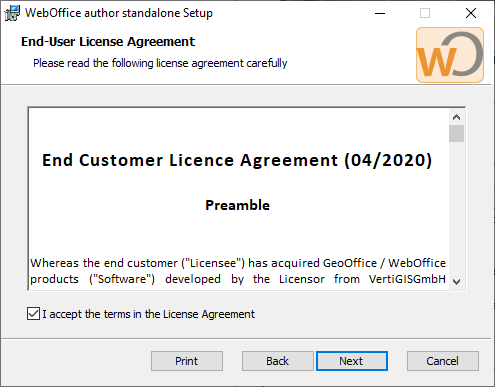
WebOffice author standalone Setup: step 2
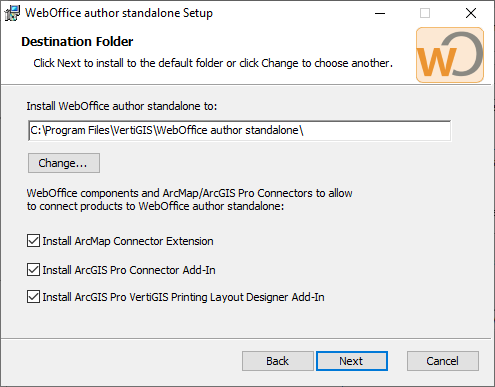
WebOffice author standalone Setup: step 3
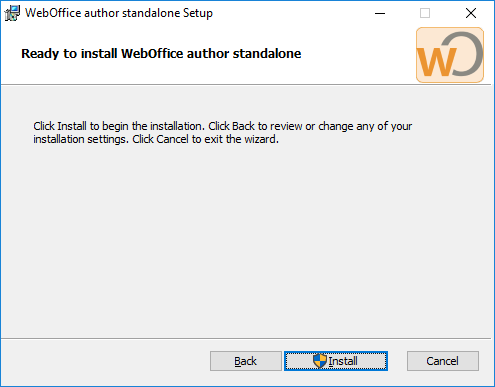
WebOffice author standalone Setup: step 4
WebOffice author standalone Setup: step 5
|
•Don't forget to click Install ArcMap Connector Extension and Install ArcGIS Pro Connector Add-In, so that WebOffice author standalone can be connected with ArcMap and ArcGIS Pro! •The installation setup of WebOffice author standalone creates the rule WebOffice author standalone UDP (Discovery) in the Windows firewall. The UDP port 31658 for 239.255.255.250 is released for a service discovery. |

Microsoft Edge WebView2 Runtime
WebOffice author standalone needs the Microsoft Edge WebView2 Runtime for the map preview in the wizard. On Windows 11 and current Windows 10 it is usually already installed, on Windows Server often not.
|
•As of WebOffice 10.9 R6, the setup checks whether the runtime is installed. If it is missing, the setup downloads it from Microsoft and installs it. For this, the computer needs internet access during the installation. •Without internet access (e.g. behind a proxy or a firewall), WebOffice author standalone is still installed completely. The setup points out that the runtime is missing, and WebOffice author standalone reports it at startup. All functions except the map preview can be used. •In this case, download the Evergreen Standalone Installer (x64) from the Microsoft download page, install it with administrator rights and restart WebOffice author standalone. You can also install the runtime before running the setup. |