xPlanung Web

xPlanung is the name of an (german) e-government project that created a object-oriented data exchange format. It is used to retrieve and display information provided by this data in a user-friendly user interface. Follow the steps of this chapter to see how to configure the XPlanung in WebOffice 10.9 R5.
|
This functionality is only supported in the WebOffice core client. |

Prerequisites
•All features of the geodatabase possess the following attribute fields
oGMLID (ID of the feature)
oPLANID (ID of the plan that is linked with the feature)
oFEATURETYPE (object type)
•The XML file has to be named [PLANID].xml
•For every plan there exists an XML file with the attribute information of all features
•By using the field PLANID and the name of the XML file, the appropriate XML file can be found
•The XML file has the following style
<Features>
<PlanName>
<Plantype>
<Feature>
<OID>
<GMLID> » This is the reference to the feature in the feature class
<PlanId> » Together with the GMLID the feature in the feature class can be identified
<SimpleClassData>
Describes the data, with different types of display
Data can be extremley nested, it always ends with a name/value pair
<SimpleData> » contains name/value; basic attribute in textbox style
<ArrayData> » can itself contain several types; enclosed data has to be indented
<ExtraSimpleClass> » can itself contain several types; enclosed data has to be indented
<EnumLookupData> » contains name/value; value lists; important for editing
<CodelistLookupData> » like <EnumLookupData>; contains name/value
<FakeClassData> » can itself contain several types; enclosed data has to be indented
<SimpleDataBoolean> » contains name/value; checkbox
Configuration in WebOffice 10.9 R5
1.Use the file xPlanung.jsp in C:\Tomcat\webapps\<WebOffice application>\pub\custom_pages\ that is shipped with your WebOffice 10.9 R5 version or the latest patch. Do not copy older versions of this file (e.g. from an earlier version or a backup) into the application, because they are not secured.
2.The XML files have to be accessible via web server. Create a virtual directory that points to the folder where the data is saved. Provide the directory via https.
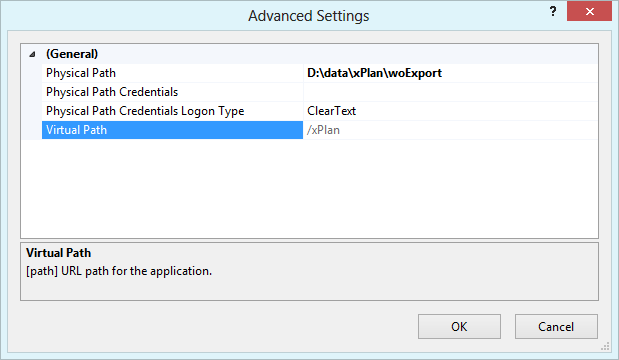
Virtual directory in IIS that points to xPlan data
3.Enter the address of this virtual directory in WebOffice author standalone under Application Configuration > Common > Custom pages (server-side settings) > Custom page xPlanung information > Plan files folder in the property Plan files address, e.g. https://<myserver>/<xPlanung virtual directory> (see Custom Pages). The page loads plan files only from addresses entered here. Redirects are not followed: if the web server redirects (e.g. from http to https), enter the final address and also use it in the base URL of the integration (parameter path). Then restart Apache Tomcat, because changes to the application configuration take effect only after a restart.
4.Publish the xPlanung data in a map service and add it into your WebOffice 10.9 R5 project.
5.Configure a Search Result View for the respective layer(s) that contains the three result fields GMLID, FEATURETYPE, PLANID
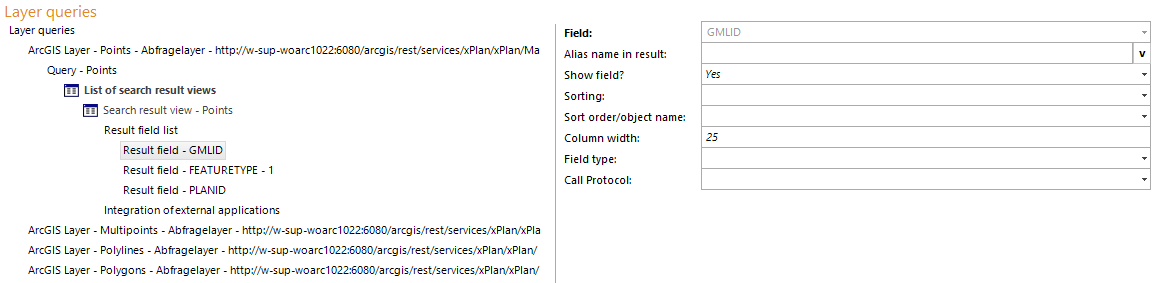
Search result view with the three important xPlanung fields
6.Configure an Integration (Call FROM WebOffice) with the correct base URL and a key set of separated parameters
•Base URL: pub/custom_pages/xPlanung.jsp?path=https://<myserver>/<xPlanung virtual directory>
•The value of path must match a plan files address entered in the application configuration. It only selects the folder; the page does not load from addresses that are not entered there.
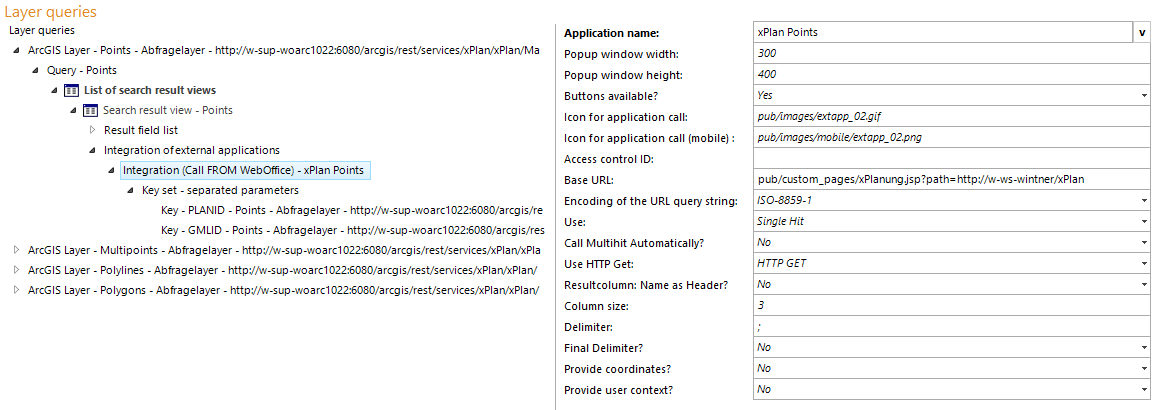
Integration (call from WebOffice) used to retrieve and display the xPlanung data
•1.Key: PLANID (HTTP parameter name: PlanId)
•2.Key: GMLID (HTTP parameter name: GmlId)
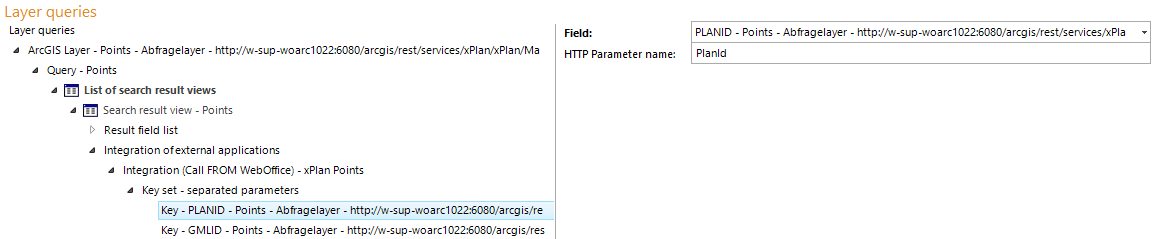
Key of separated parameters - PLANID, GMLID
|
•The page only works if it is called from a running WebOffice 10.9 R5 session (opened project). Direct calls or bookmarks without a session are rejected. •The values of PLANID and GMLID may only contain letters (A-Z, a-z), digits, underscore (_) and hyphen (-) and may be at most 64 characters long. Other values are rejected. •If no plan files address is entered, the page shows a notice and no plan data. |
Now it is possible to select features of the xPlanung layers and open hyperlinks that show the xPlanung data in the standardized form
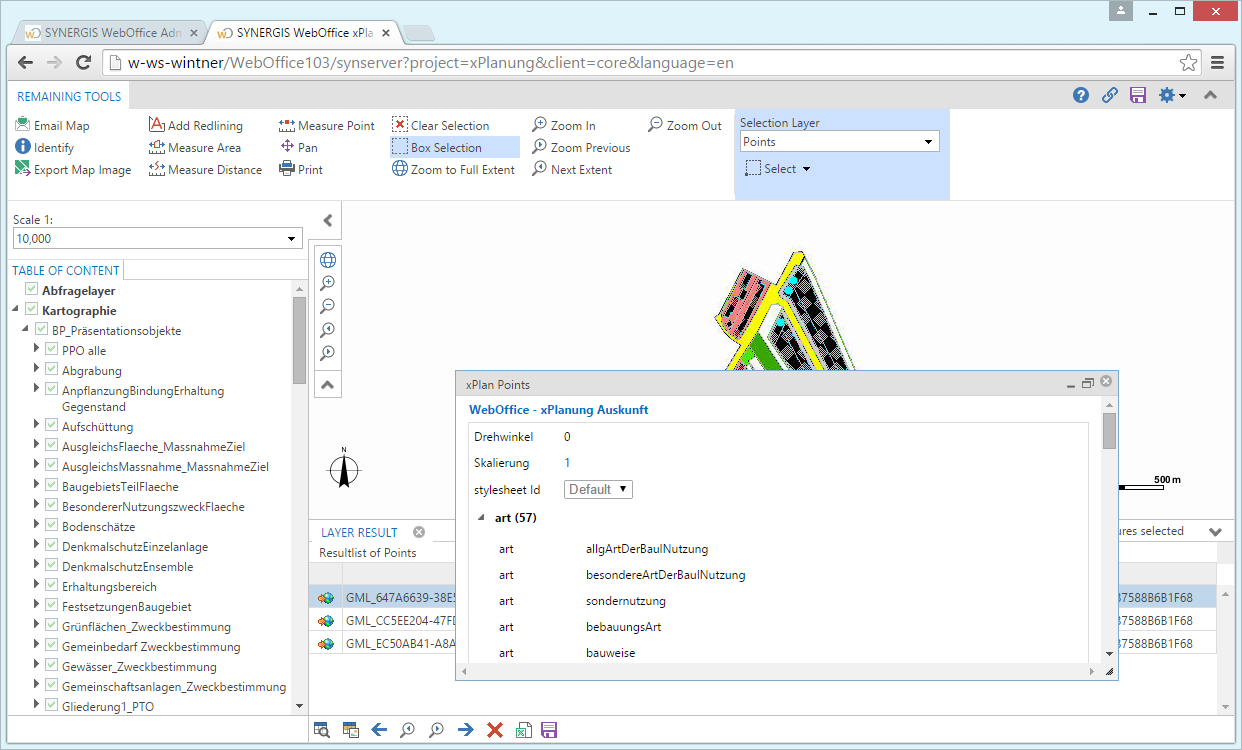
WebOffice - xPlanung Auskunft in the WebOffice core client