Google Street View widget

This Custom Tool allows users to display a Google Street View (c) widget showing panoramic views from positions along streets. Configure the custom tool GoogleStreetviewWidget.htm from the directory C:\Tomcat\webapps\<WebOffice application>\pub\custom_tools as described:
|
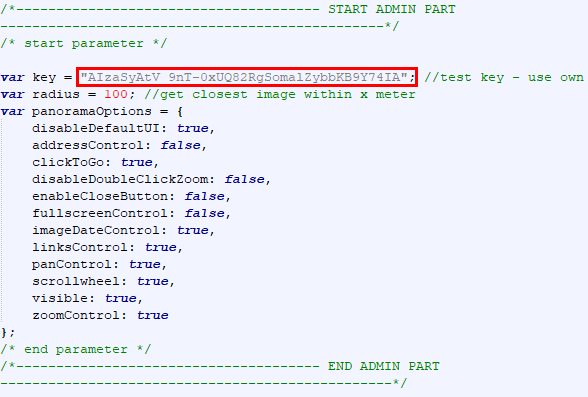
No API key is provided with the custom tool. In order to use it, the WebOffice administrator has to apply for an own Google API Key. This can be requested via a Google Business Account and is entered in WebOffice author standalone under Application Configuration > WebOffice > Custom Tool API Keys with the name google_maps (the same key as for Google Maps). The key is kept on updates. Changes to the application configuration take effect only after a restart of Apache Tomcat. The key is delivered to the browser. Restrict it at Google to the address of your WebOffice application (HTTP referrer). The variable key in the Admin Part of the Custom Tool (see figure) is only used if no key is entered in the application configuration. Without a key, the custom tool shows a notice instead of the view.
|

|
WebOffice 10.9 R5 offers the technical possibilities of using Google Street View (c) within the application, but the license terms (terms of use) have to be fulfilled to use the integration of the Google Street View (c) service legally. If this is not the case a break of the license exists. VertiGIS does not take over any responsibility concerning the legal use of the Google Street View (c) Terms. More details of the terms of use of Google Street View you can find within the following link https://www.google.com/intl/en_US/help/terms_maps.html. |

(1) Web-Integration - Custom Tool
Configure a Web integration - custom tool with the following parameters:
URL of external page: pub\custom_tools\GoogleStreetviewWidget.htm
JavaScript function: callFromWO
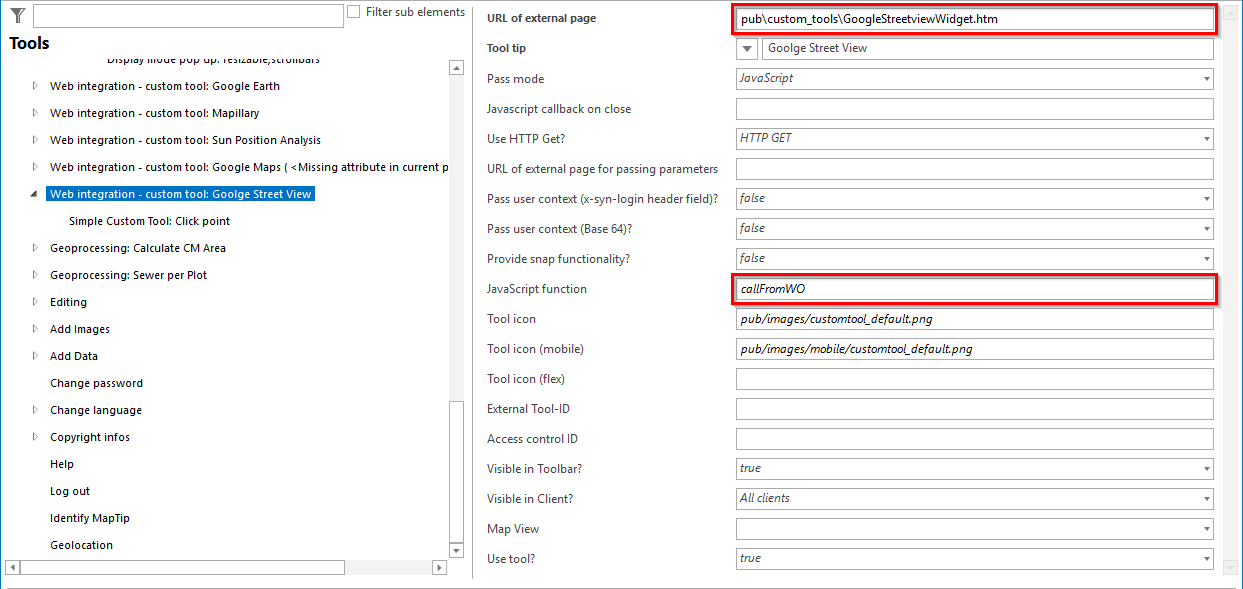
Configuring a custom tool for using the Google street View widget
(2) Simple Custom Tool
Configure a Simple Custom Tool with tool mode Click point.

Configuring a Simple Custom Tool for using Google Street View widget
|
To use the Google Street View (c) Widget a Google Maps JavaScript API key is necessary. The customer have to create a API-Key for Google Maps (c) with the following link https://developers.google.com/maps/documentation/javascript/?hl=de. Enter this key in the application configuration under Custom Tool API Keys with the name google_maps. |
The Google Maps JavaScript API key can be inserted within the administration part of the external site (pub\custom_tools\GoogleStreetviewWidget.htm) only as a fallback if no key is entered in the application configuration. The application configuration is recommended, because the shipped page is replaced on updates.
Within the HTML site of the Google Street View (c) widget you can find different parameters to customize the Google Street View (c) window. The following table shortly describes the different panorama options of the Google Maps API.
Parameter |
Description |
|---|---|
disableDefaultUI |
Enables/disables all default UI. May be overridden individually. (Type: boolean) |
addressControl |
The enabled/disabled state of the address control. (Type: boolean) |
clickToGo |
The enabled/disabled state of click-to-go. (Type: boolean) |
disableDoubleClickZoom |
Enables/disables zoom on double click. Disabled by default. (Type: boolean) |
enableCloseButton |
If true, the close button is displayed. Disabled by default. (Type: boolean) |
fullscreenControl |
The display options for the fullscreen control. (Type: boolean) |
imageDateControl |
The enabled/disabled state of the imagery acquisition date control. Disabled by default. (Type: boolean) |
linksControl |
The enabled/disabled state of the links control. (Type: boolean) |
panControl |
The enabled/disabled state of the pan control. (Type: boolean) |
scrollwheel |
If false, disables scrollwheel zooming in Street View. The scrollwheel is enabled by default. (Type: boolean) |
visible |
If true, the Street View panorama is visible on load (Type: boolean) |
zoomControl |
The enabled/disabled state of the zoom control (Type: boolean) |
Google Street View Panorama Parameters (HTML File)
|
•See chapter Web Integration - Custom Tool for details about the configuration of custom tools in WebOffice author standalone. •Please consider that the Google Street View © widget is only available within the WebOffice core client, if also the tool Search Coordinates is configured for the same project. For more details see chapter Search Coordinates. |