Google Maps © Call

This Custom Tool allows users to use Google Maps © as followed:
•Static custom tool: Google Maps © opens in a new pop-up window with the current map extent of the WebOffice core client.
•Simple custom tool: The Google Maps © window covers the half of the WebOffice map. Both maps react synchronously to further interactions (zoom, pan, etc.).
•Simple custom tool with routing parameter enabled: Based on two clicks in the map of the WebOffice core client, Google Maps © opens with the corresponding routing functionality.
Configure the custom tool GoogleMapsWidget.htm from the directory C:\Tomcat\webapps\<WebOffice application>\pub\custom_tools as described below:
(1) Web-Integration - custom Tool
Configure a Web integration - custom tool with the following parameters:
URL of external page: pub/custom_tools/GoogleMapsWidget.htm
JavaScript function: callFromWO
Tool icon: pub/images/customtool_google_maps.png
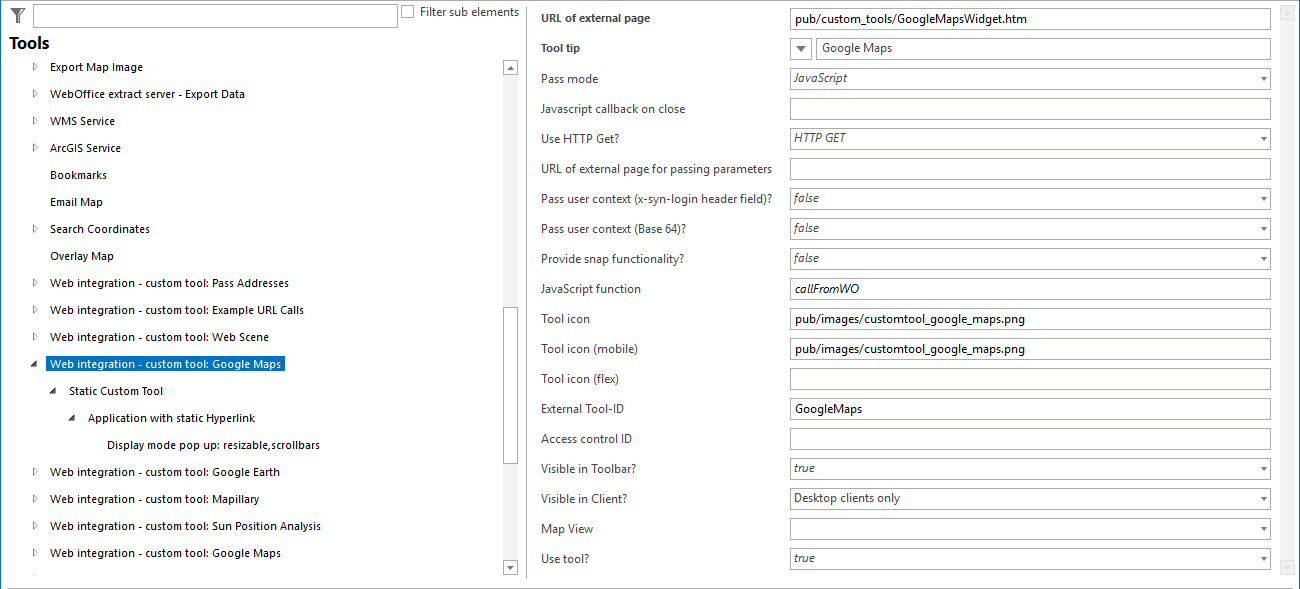
Configuring a custom tool for Google Maps © Call
(2) Configuration of a specific custom tool
Depending on how the Google Maps © custom tool should be executed, the following types of custom tools can be defined:
Static Custom Tool
Configure a static custom tool for the respective web integration. This opens Google Maps© in a new pop-up window with the current map extent of the WebOffice core client:
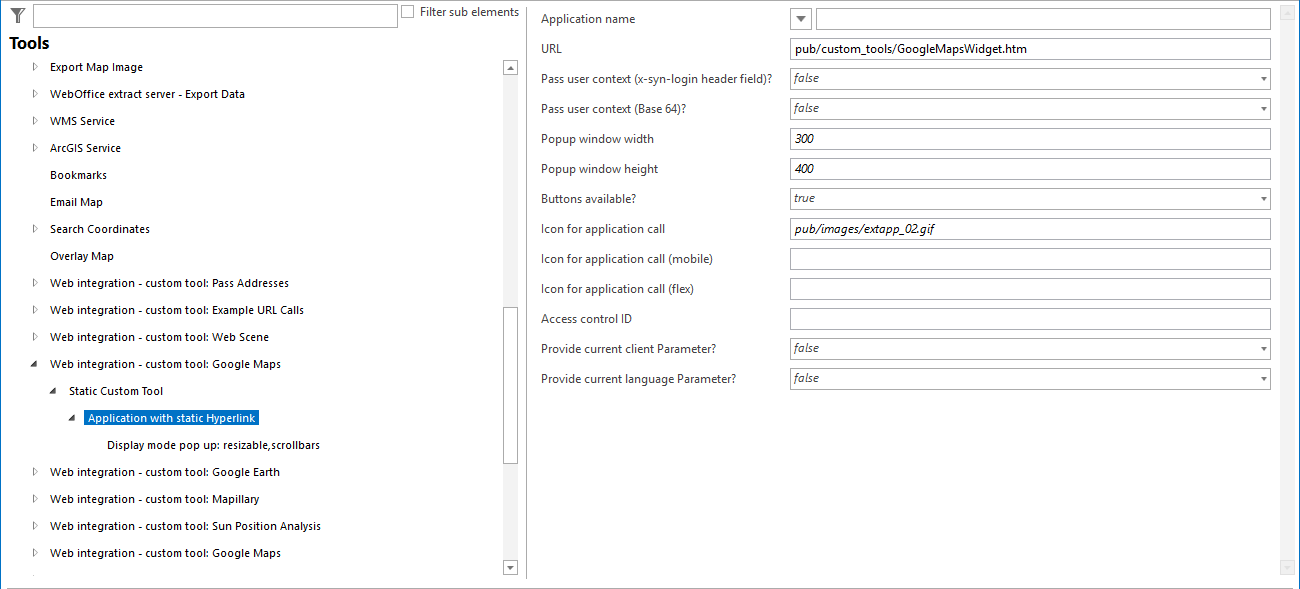
Configuring a static custom tool for Google Maps © Call
Next, configure the display mode pop up for the static custom tool you have just created:
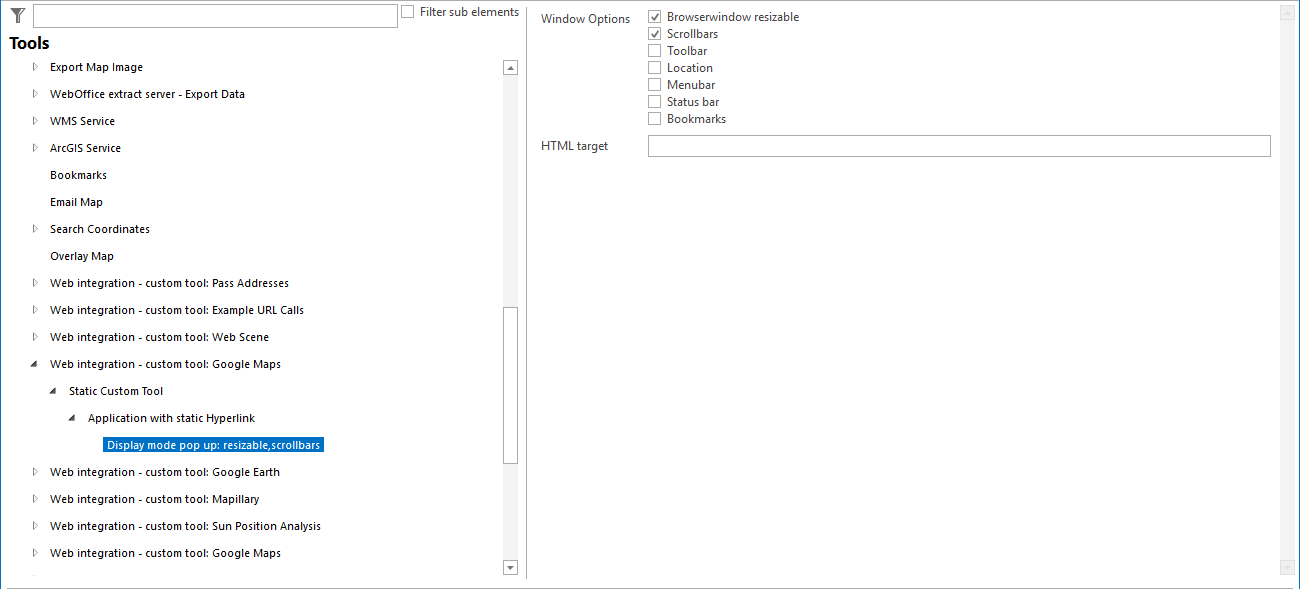
Configuring display mode pop up for Google Maps © Call
Simple Custom Tool
Configure a simple custom tool for the respective web integration. Thereby, the Google Maps© window covers the half of the WebOffice map, whereby both maps react synchronously to further interactions (zoom, pan, etc.). This means that interactions in the WebOffice map affect the Google Maps© integration and vice versa.
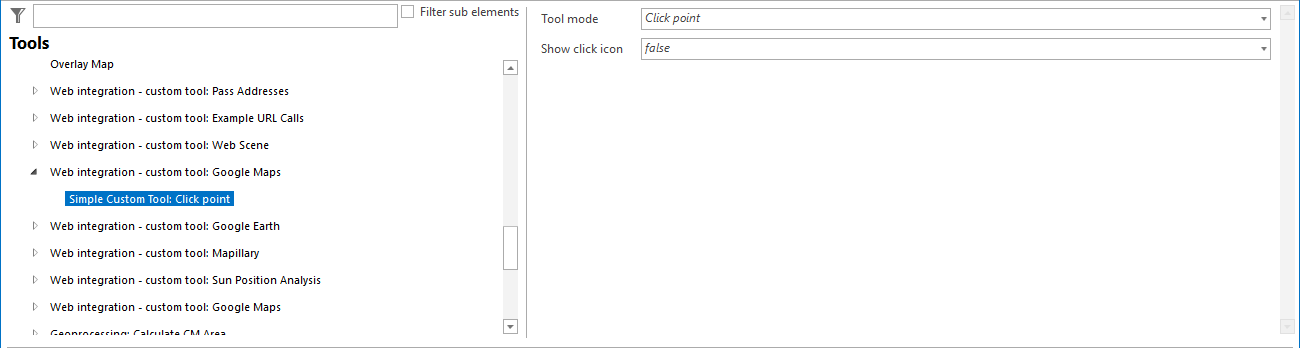
Configuring a simple custom tool for Google Maps © Call
Simple Custom Tool with routing parameter enabled
First, it must be ensured that the routing parameter useIframeAsRoute is activated in the admin part of the Google Maps© custom tools:
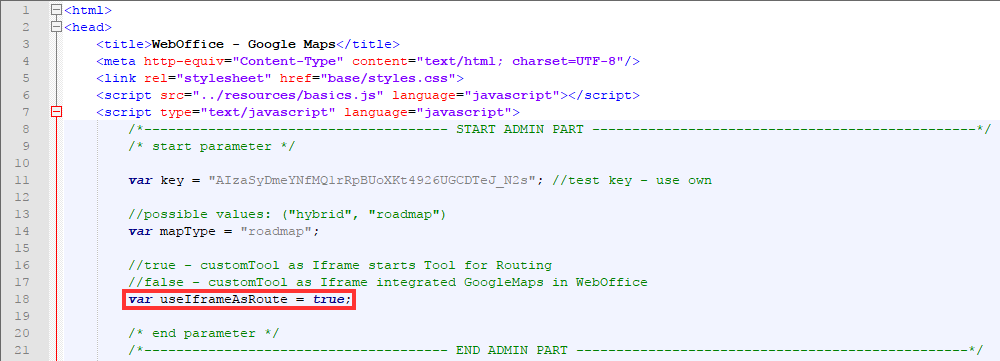
Enabled routing parameter within the admin part of the Google Maps © custom tool
Then configure a simple custom tool for the respective web integration as described above. Thereby, the coordinates of two clickpoints within the WebOffice core client are transferred to Google Maps ©. At the same time, the routing functionality of Google Maps © is started by using the transferred coordinates.
|
•Within the admin-part of the file GoogleMapsWidget.htm it is possible to define, with which base map type Google Maps © will be opened. The possible values are: ohybrid oroadmap •No API key is provided with the custom tool. Only the Simple Custom Tool (embedded map) needs a key. The Static Custom Tool and the Simple Custom Tool with activated routing parameter open Google Maps© in a separate window and do not need a key. •The WebOffice administrator applies for an own Google Maps JavaScript API key and enters it in WebOffice author standalone under Application Configuration > WebOffice > Custom Tool API Keys with the name google_maps. The same key is also used for Google Street View and is kept on updates. Changes to the application configuration take effect only after a restart of Apache Tomcat. •The key is delivered to the browser. Restrict it at Google to the address of your WebOffice application (HTTP referrer). The variable key in the admin-part of GoogleMapsWidget.htm is only used if no key is entered in the application configuration. For more information see Google Maps API. •See chapter Web Integration - Custom Tool for details about the configuration of custom tools in WebOffice author standalone. |
