Export Customized Files

VertiGIS provides a script (BAT file) to export WebOffice configurations and customized files. Afterwards these files can be simply imported into new, updated WebOffice applications. Copy the script from the WebOffice10.9R5-DVD in path: WebOffice10.9R5-DVD\Software\Miscellaneous\Automatization\Export_WebOffice_Configurations_and_Customizing.bat.
The following steps have to be done before running the script:
1. Stop Apache Tomcat
2. Backup your WebOffice 10.9 R5 application
3. Adjust WebOffice Source and Export Folder inside the script:
WEBOFFICE_SOURCE_FOLDER: path to the WebOffice application with customized files
WEBOFFICE_EXPORT_FOLDER: path to a temporary folder, where the customized files should be exported to
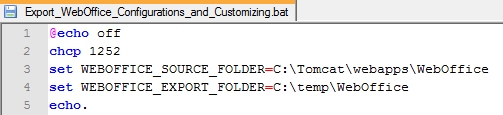
Adapt SOURCE and EXPORT folder
4. Now you can run the script as administrator
5. Copy only the folder in which you keep your own, adapted files (customer-specific folder, e.g. pub\<customer folder>) into your WebOffice Export folder structure. Do not copy the complete pub folder.
6. Deploy latest WebOffice 10.9 R5 application from WebOffice10.9R5-DVD to Apache Tomcat /webapps-folder and apply the latest patch (if available)
7. Copy your exported WebOffice configuration and customization (from EXPORT folder) into your new WebOffice 10.9 R5 application (in Tomcat). Do not overwrite any shipped files of the new version.
8. Fetch a new WebOffice license
9. Start Apache Tomcat
|
ATTENTION! •The shipped example files under pub (e.g. pub\custom_tools, pub\custom_pages) are replaced with every update and patch, also to deliver security fixes. •Do not copy older versions of shipped example files back into the new application. They would undo the security fixes and may no longer work with the new version. •If you have adapted a shipped example file, re-apply your adaptation to the new version of the file. In future, save adapted files under an own name in your customer-specific folder. •API keys for the example custom tools (e.g. Google Maps, Mapillary) are entered in the application configuration under WebOffice > Custom Tool API Keys and are taken over with the application configuration. |

|
The script for exporting customized files can be copied from WebOffice10.9R5-DVD\Software\Miscellaneous\Automatization\Export_WebOffice_Configurations_and_Customizing.bat. If you have to export files from more applications, the script must be adapted and executed again. |
