Customer Information |
  
|
Customer Information |
|
Configure customer specific information like logos, URLs etc. displayed in the WebOffice 10.5 SP2 clients.
Using Customer Information it is possible to implement the most important customization aspects by simple configuration.
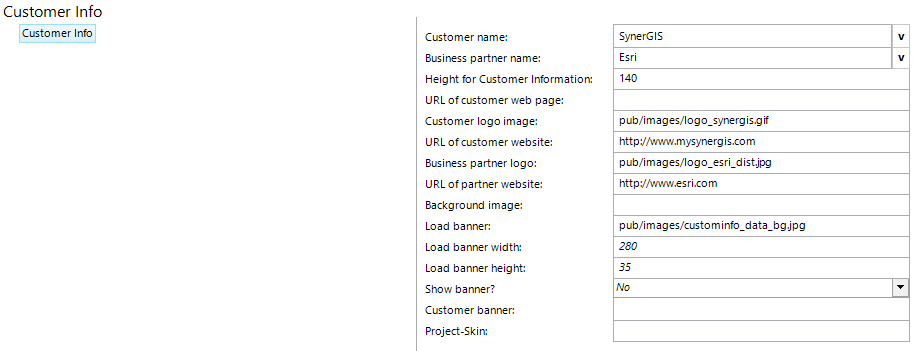
Customer information configuration
Property |
Description |
Customer name |
Name of the customer shown in WebOffice 10.5 SP2 clients. Note: The configured text is only shown if no "URL of customer web page" is configured. The text is shown as tool tip of the customer logo if configured. If neither is configured , the plain text is displayed. You may use HTML Tags for formatting the text (e.g. <b> for bold or <br> for a new line). Keep in mind that not all possible HTML formatting options are useful due to the customer window size. |
Business partner name |
Name of the business partner shown in WebOffice 10.5 SP2 clients. Note: The configured text is only shown if no "URL of customer web page" is configured. The text is shown as tool tip of the business partner logo if configured. If neither is configured , the plain text is displayed. You may use HTML Tags for formatting the text (e.g. <b> for bold or <br> for a new line). Keep in mind that not all possible HTML formatting options are useful due to the customer window size. |
Height for Customer Information |
Height for customer information in pixel. Note: In order to display two queries, table of content, layer filter and the customer logo in a browser with a resolution of 1024x768 px without any scroll bar, the logo should not exceed 180x110 px. Be aware that this is only a recommended value and depends largely on configuration and user profiles. |
URL of customer web page |
The configured page gets displayed in WebOffice 10.5 SP2 clients tightly integrated and may display customer information, maintenance information, news or functionality. Note: If this page is configured, then all other attributes of this configuration element are not taken into consideration |
Customer logo image |
URL to the image file representing the customer logo. |
URL of customer website |
URL to customer home page. |
Business partner logo |
URL to the image file representing the partner logo. |
URL of partner website |
URL to partner home page. |
Background image |
File path to the image file used as background image for customer info page. Note: You may use •pub/images/custominfo_map_bg.jpg for map centric view and •pub/images/custominfo_data_bg.jpg for data centric view. |
URL to the image file representing the load banner. In case the user navigates rapidly and dynamic services are present in the map, the load banner blocks the navigation to fully load the data. |
|
Load banner width |
Load banner width in pixels. |
Load banner height |
Load banner height in pixels. |
Show banner? |
WebOffice 10.5 SP2 shows the load banner with asynchronous requests, when a map update is expected. |
Customer banner |
URL to customer banner to be shown in WebOffice 10.5 SP2 client (vertical layout from top left to bottom left of the WebOffice 10.5 SP2 client window) . HTML page or image can be used. |
Define the file name (without file extension) resp. the folder name - see note below - of your skin in order to display a customized user interface. Note: Depending on the client, your project skin is based on different files for the various clients. •WebOffice core client: The project skin has to be located in C:\Tomcat\webapps\<WebOffice application>\pub\client_core\styles\ using the nomenclature <project-skin-name>.css and for right to left menus <project-skin-name>_rtl.css. Detailed information can be found in chapter Styles (CSS). •WebOffice html client: The project skin can be created based on the file <%DIRECTORY_WEBOFFICE_APP%\client_workspace\JSXAPPS\weboffice\jss\synergis_weboffice.xml and has to be saved as <project-skin-name>.xml in a new directory C:\Tomcat\webapps\<WebOffice application>\pub\styles. Detailed information can be found in chapter How to Layout. •WebOffice flex client: The project skin folder has to be located in C:\Tomcat\webapps\<WebOffice application>\pub\client_flexjs\skins. For WebOffice flex you need to define the folder name in this configuration element. Detailed information can be found in chapter Skins for WebOffice flex. •WebOffice flex (flash): You can use the following predefined skins: grey (gray), brown (navajowhite), green (olivedrab). These predefined skins cannot be further customized.
When using a project skin, any definitions in the file synergis_weboffice_user.xml will not have any impact. |
Customer information properties