Publish Map Documents |
  
|
Publish Map Documents |
|
In this step the required files will be copied and than the map services of the Sample Project will be published to the server.
Copy the entirely content of the directory WebOffice10.3-DVD\SampleProject\WebOffice directories Add-On\ServiceDocuments from the DVD to your ServiceDocuments directory (e.g. <ArcGIS Server location>\directories\ServiceDocuments). It contains a file geodatabase with sample project data.
In a next step unzip SampleProject.zip file. Make sure that the file Editing.gdb is in the right directory: DIRECTORY_AGS_DIRECTORIES%>\ServiceDocuments\SampleProject\Data\Editing.gdb. Afterward you can delete the zip-file. Check if the copied MXDs are set to Read-only. In case the files are set to read-only, deactivate the checkbox.
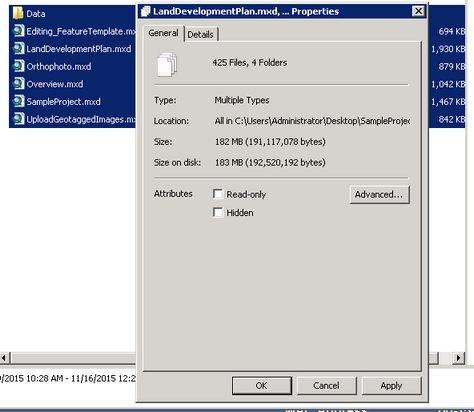
Allow write access to the MXDs
Note: Ensure that there exists a connection to ArcGIS Server with at least publisher rights. If there is no connection or only a connection with user rights, then create a new one according to chapter Check ArcGIS Server.
First you need to register the SampleProject.gdb with the server. Therefore, right-click your ArcGIS 10.3 for Server connection and open the server properties. Go to tab Data Store and add the SampleProject.gdb to the registered folders.
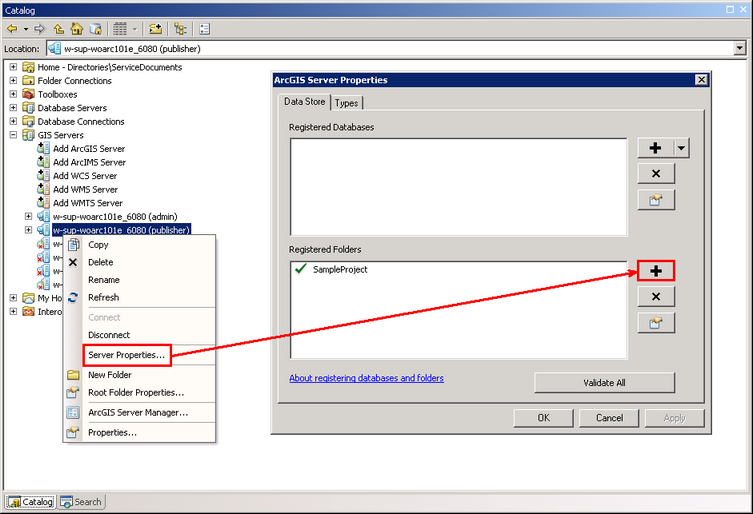
Register the SampleProject.gdb with the server
Afterwards, you have to register the Editing.gdb too. Therefor you have to consider the steps, which were mentioned in the previous paragraph.
Differences of the publishing process regarding dynamic and cached map services will be shown using the MXDs SampleProject_Cadaster.mxd (dynamic) and SampleProject_LandDev.mxd (cached). Publish the other map documents as described below.
| • | Dynamic Services: |
SampleProject.mxd
Overview.mxd
| • | Cached Services: |
LandDevelopmentPlan.mxd
Orthophoto.mxd
Start with the publishing of all dynamic services by opening the MXD SampleProject.mxd from <ArcGIS Server location>\directories\ServiceDocuments.
Choose File > Share As > Service ...
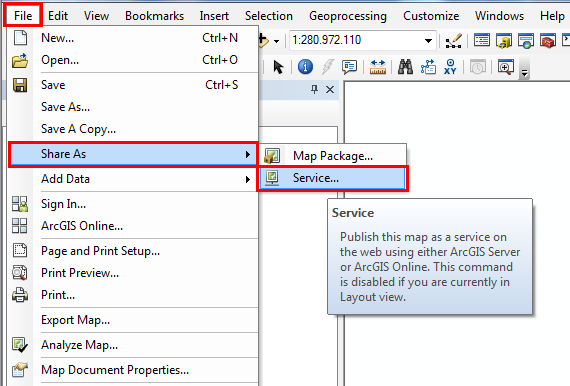
Publish map as service
Pick the first option Publish a service in the window Share as Service.
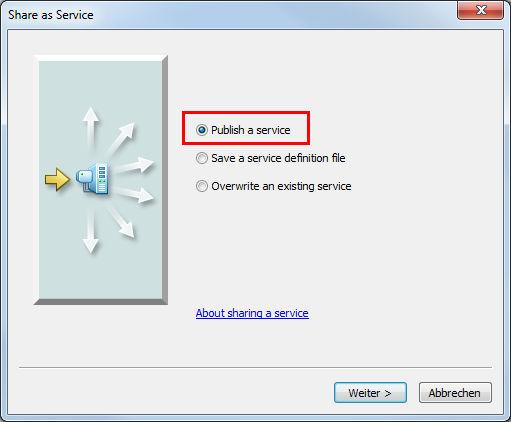
Publish a service
Choose a connection and keep the default service name.
Note: Ensure that the server has a Publisher role.
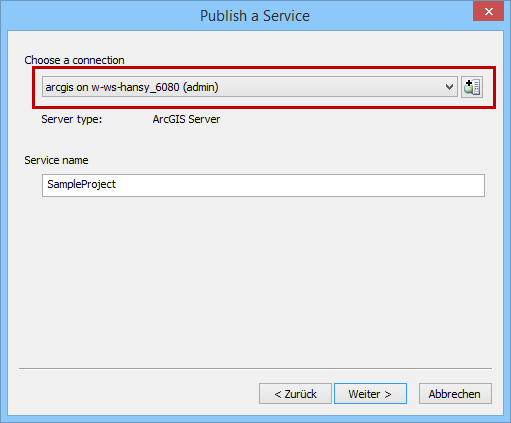
Choose connection
By default the services are published to the root folder of ArcGIS 10.3 for Server.
For the sample project create a new folder SampleProject.
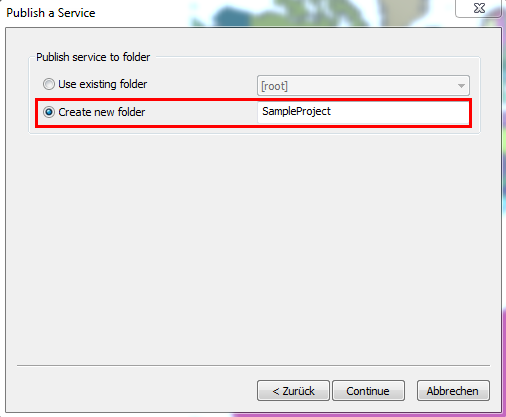
Create new folder 'SampleProject'
In the Service Editor window you can define properties of the service.
Note: In order to ensure that Snapping in WebOffice 10.3 SP2 works without reaching the maximum number of records, increase the value in Parameters > Maximum number of records returned by the server to 5000.
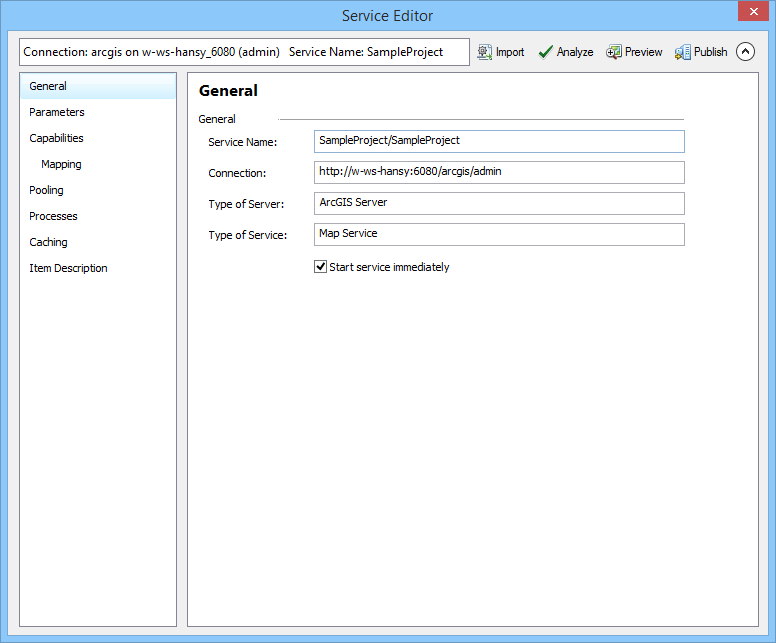
Properties in Service Editor
Pick Capabilities and deselect KML, Mapping must always be enabled.
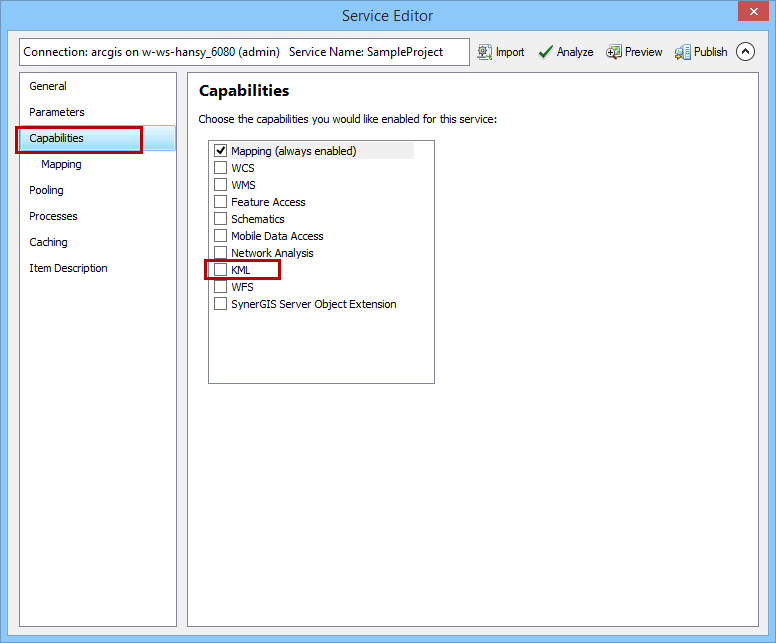
Deselect "KML" in the capabilities
In a next step pick Analyze to find potential troubles before publishing the map to the server.
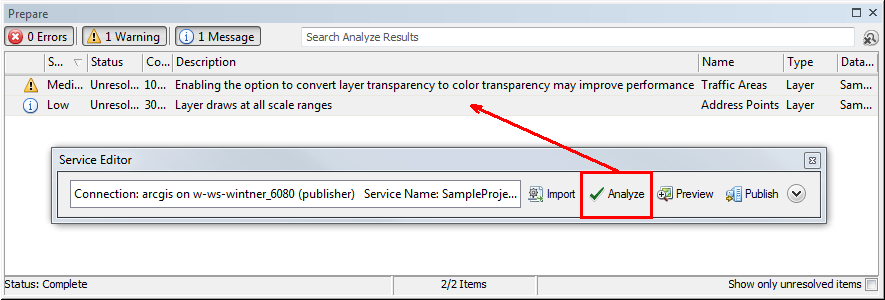
Analyze in Service Editor
A window appears, that shows errors, warnings and messages. In case of the Sample Project files you can leave the warnings and messages unresolved, errors would have to be corrected.
Publish the map to the server with the Publish button.

Publish the service
At the end a note confirms, the the service for SampleProject.mxd has been successfully published.
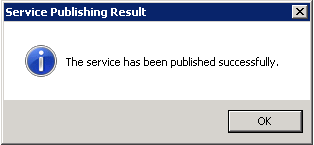
Service Publishing Result
Publish the Overview.mxd in the same way as described above.
Publish Cached Map Services
For the sample project the MXD LandDevelopmentPlan.mxd will be published as a cached service. Proceed through the steps as shown before until reaching the service editor. Deactivate KML in Capabilities, then pick Caching and choose Using tiles from a cache (1). Set tiling scheme to ArcGIS Online / Bing Maps / Google Maps (2) and choose 15 to 19 as Levels of Detail (3). Press the button Calculate Cache Size to calculate an estimated cache size (4).
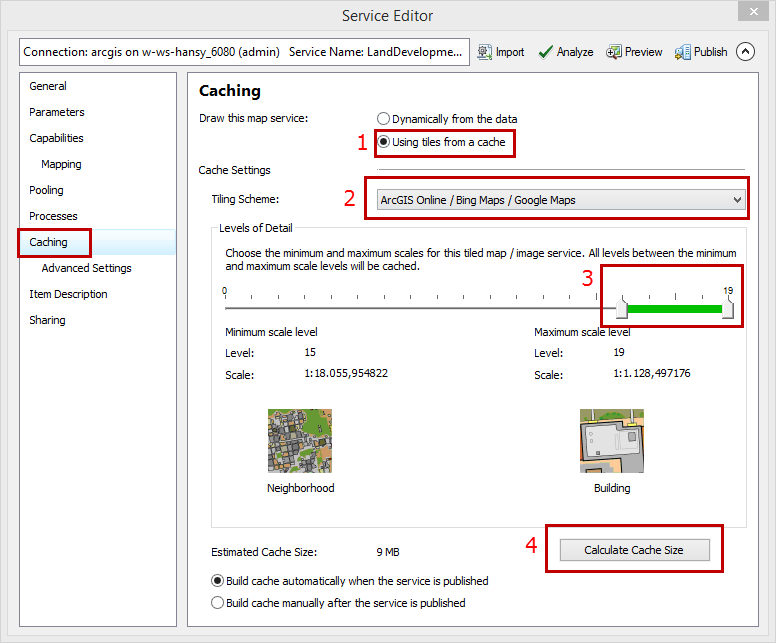
Cache the map service
The estimated cache size will be about 3 MB. Leave all other settings unchanged and publish the service. The cache generation will start immediately after publishing the service.
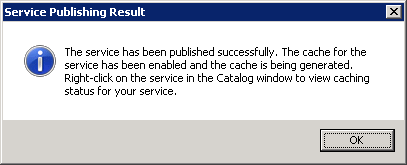
The cache is being generated
Now publish the MXD Orthophoto.mxd the same way except one point. Before clicking Publish, go to Advanced Settings and change the tile format to JPEG.
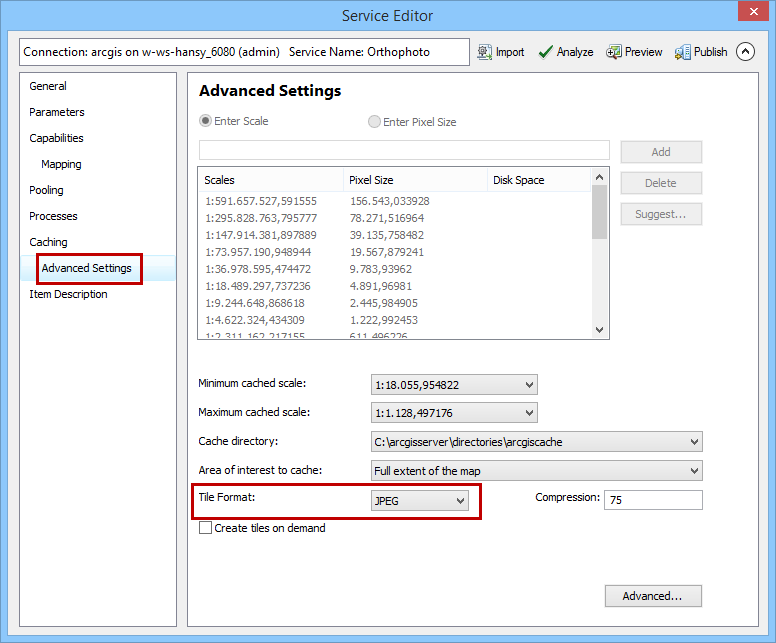
Advanced Caching Settings