Edit |
  
|
Edit |
|
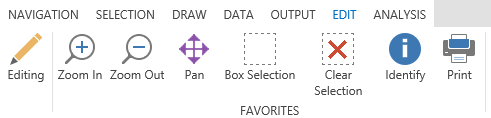
Edit tool in the WebOffice core Client
The Edit tool enables various editing operations in WebOffice core. Activating the tool in the toolbar will open the edit ribbon where you need to choose
| • | the edit layer |
| • | the edit action |
in order to start editing in the WebOffice core client.
Note: It is possible to define both the Default Edit Layer and the Default Edit Action to be preselected in your project configuration.

Edit button
Note: The button only appears when having Geometry editing switchable configured.
Editing features
In general features consist of two different kind of information - geometry and attributes. The edit tool can be configured to edit both information or only one of it.
The geometry is built by vertices, one vertex for points, multiple vertices for lines and polygons.
Note: You will find more details about editing in chapter Editing Geometry.
Attributes can be edited in an own form.
Note: You will find more details about the different options for editing attributes in chapter Edit Attributes.
After having activated the tool, a dynamic ribbon appears with the following information:

Edit configuration in the dynamic ribbon for editing
Edit Layer
From the drop down list Edit Layer you can select one of the configured Edit Layers that can be either a
| • | point feature class - symbolized by  |
| • | polyline feature class - symbolized by  |
| • | polygon feature class - symbolized by  |
Edit Action
After the edit layer has been selected you can choose one of the available edit layer's edit actions that are configured in the List of Available Edit Actions.
They may include:
| • | create: create new objects |
| • | edit: edit existing objects |
| • | copy: copy existing objects |
| • | delete: delete existing objects |
| • | copy from: copy an existing object from another layer to your edit layer |
| • | copy from template: select a feature template from a template layer that can be copied to your edit layer |
| • | split: split an existing object |
| • | merge: merge two existing objects |
| • | cut: cut off parts or holes from an existing polygon feature (only polygon feature classes) |
Further options are listed in the table above:
Icon |
Menu Item |
Description |
||||
|
Zoom To |
Zooms to the selected edit feature. |
||||
|
Reset editing |
Reverts all geometric and attribute changes to the object. |
||||
|
While creating or editing a feature, you can review, edit, import and export the coordinate pairs of the created or edited features using the vertex grid. The currently edited vertex is marked orange. By using the export button it is possible to export the coordinates of the vertices into a specified format. It is also possible to upload a CSV file that contains X/Y coordinates to provide the geometry when creating or editing a feature.
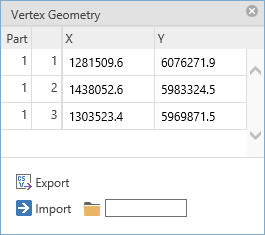 Vertex Geometry
Note: The format and file extension may be edited in C:\Tomcat\webapps\<WebOffice application>\client_workspace\JSXAPPS\weboffice\editgeometry_export.jsp.
Customize the following lines for your purpose: //---------- begin // can get changed by admin -------------- //
Note: Regarding the upload of CSV files to import geometry:
|
|||||
|
Construction |
The construction button opens a form with several, useful construction features for editing. |
||||
|
Submit editing |
By clicking this option all changes made to geometry and attributes are submitted. |
||||
|
Cancel editing |
Cancels editing on the currently selected feature. Another feature can be selected immediately after canceling. |