MGRS Search

This custom tool allows end users to enter coordinates in MGRS format directly via an input field. After entry, the coordinates are automatically validated to ensure that they correspond to the correct MGRS format. If the entry is invalid, the user receives a notification pointing out the problem and requesting correction.
Optionally, the entered and validated coordinates can be saved and labeled as a markup or redlining using the "Add to markup" button. This enables visual representation and documentation of the position directly on the map. To better locate the set position on the map, you can zoom directly to the coordinates using the "Zoom to" button. The zoom level corresponds to the standard scaling of WebOffice defined in the project configuration. It is also possible to search for multiple MGRS coordinates by clicking the "Add row" button.
A nice-to-have feature is the automatic formatting of the input according to the official MGRS nomenclature as described on Wikipedia. This ensures consistent presentation and facilitates further processing of the coordinates.
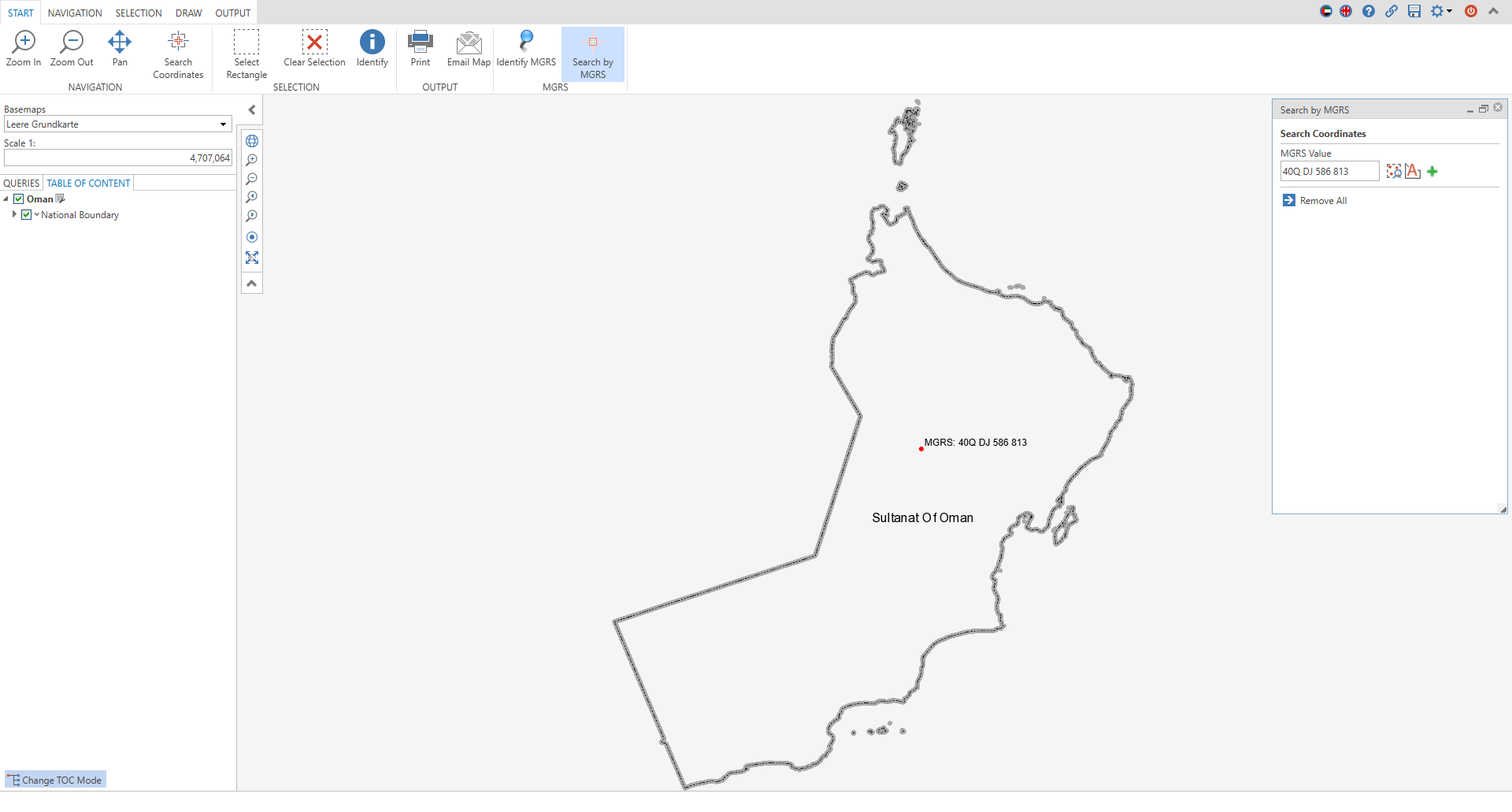
To do this, configure the Custom Tool MGRS_search.htm from the C:\Tomcat\webapps\<WebOffice application>\pub\custom_tools\MGRS directory as follows:
(1) Web-Integration - custom tool
Configure a custom tool from the Web Integration tool group with the following parameters:
•Url of the external page: pub/custom_tools/MGRS/MGRS_search.htm
•Tool icon: client_core/images/toolcoordsearch_marker.png
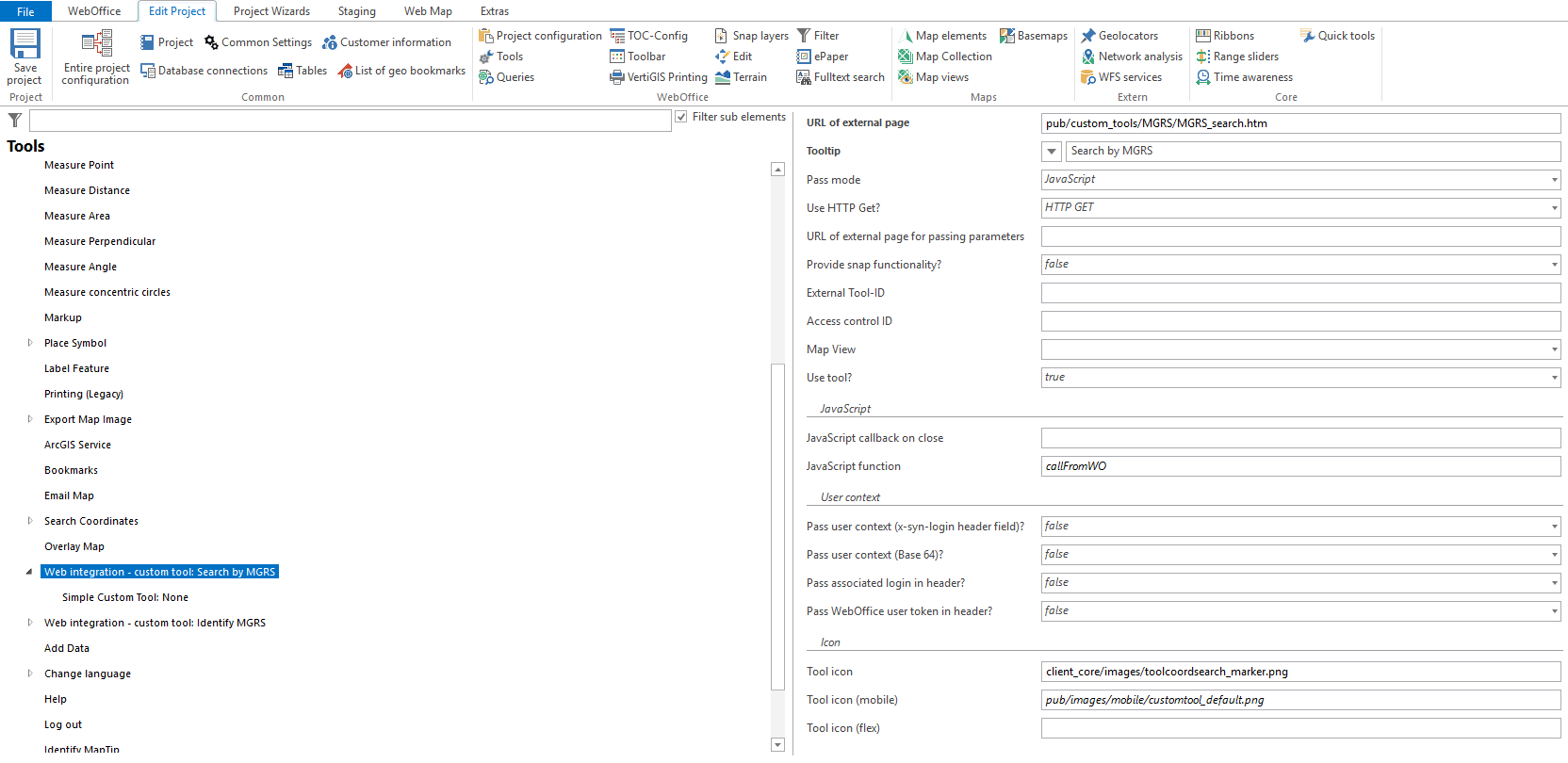
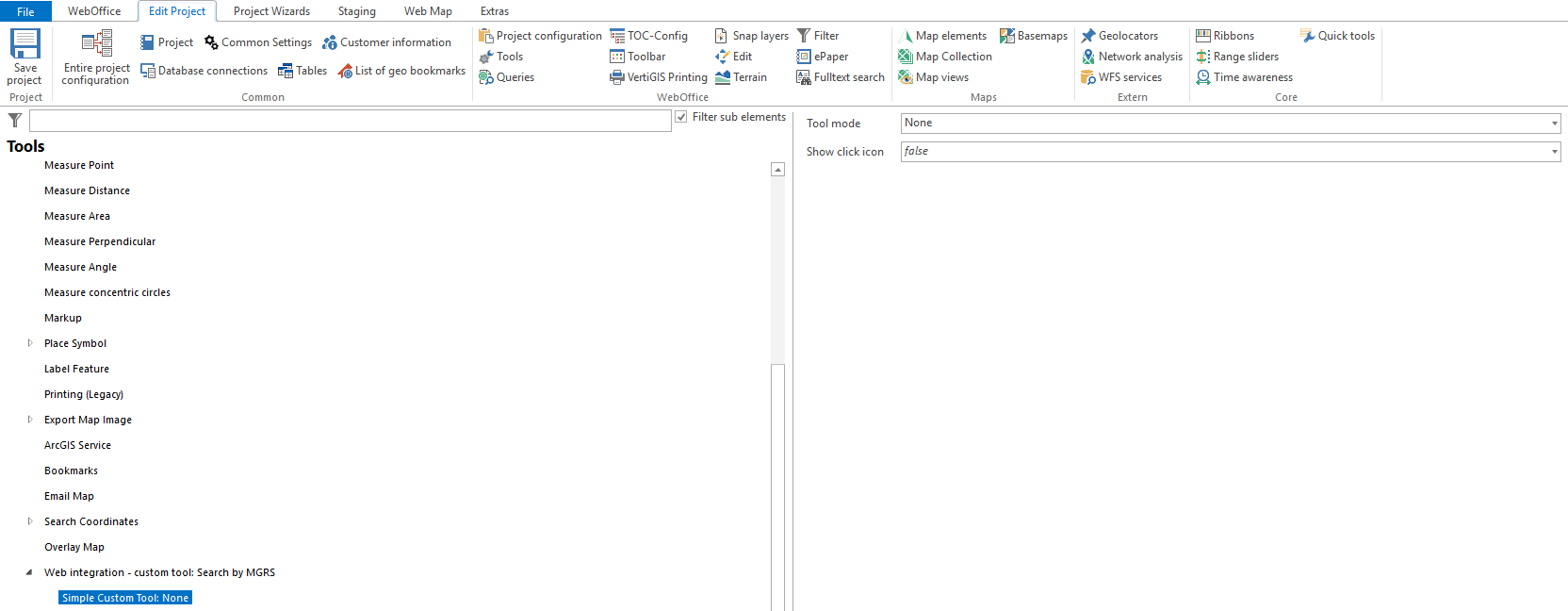
(2) Simple Custom Tool
Configure a Simple Custom Tool with Tool mode "None" for the custom tool.
|
For more details on configuring a custom tool, refer to the chapter Web Integration - Custom Tool . |
